
1. Orders Overview
Manage orders between Shopify and Temu, including Fulfill, Cancel, and Refund—all within the App.
Sync Orders to Shopify and the App
Once your setup is complete and your account is connected, all new Temu orders will automatically appear in the Orders tab. Orders placed before the connection won’t import automatically. To retrieve past orders, please contact our support team.
Orders List
- The list can be searched by Temu ID or order item, filtered by date.
- Orders are categorized into
Need Attention,Fulfilled by Temu,Fulfilled by sellerandFulfilled by seller (closed)tabs. Orders from different countries are indicated by flags.
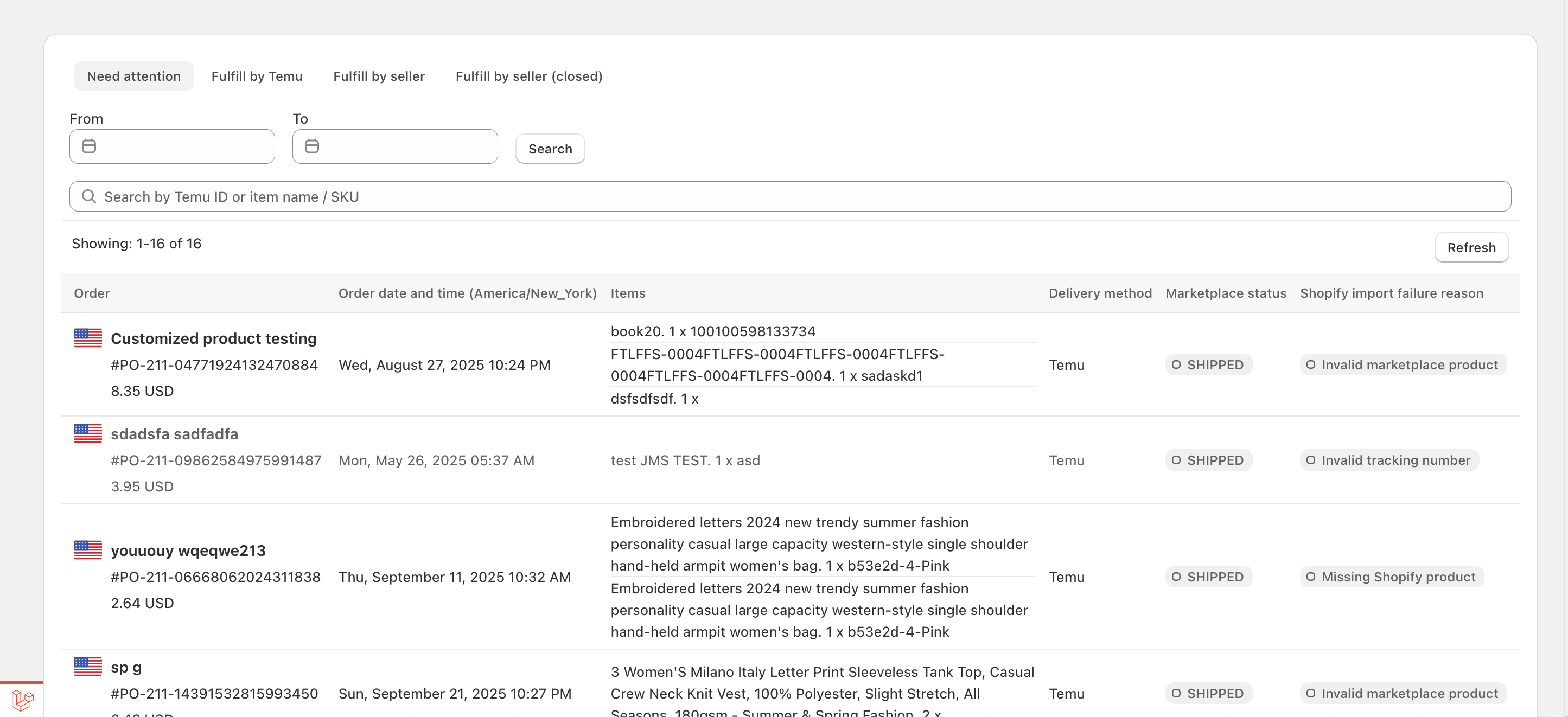
2. Need Attention
- This tab lists all orders that need attention from the seller.
- Usually contains orders that cannot be imported into Shopify or other errors.
- This is the only tab you should be concerned with.
3. Fulfilled by Temu (FBM)
- Contains orders fulfilled by Temu.
- These orders are view-only in the App. You cannot fulfill or cancel them here.
- FBM orders are synced for tracking and visibility only.
Note: Since these orders are fulfilled by Temu (FBM), you do not need to take any fulfillment or cancellation actions in the App. For changes, please use Temu Seller Central.
4. Fulfilled by seller (FBS)
- FBS orders appear in this tab once placed, after a pending period (often takes 30–40 minutes).
Note: Temu typically confirms payments within 30–40 minutes. In rare cases, this may take up to 2 days.
If an order remains in Pending for too long, please check it on Temu Seller Central.
If payment is not confirmed, the order will not sync to Shopify, and our support cannot force an override.
5. Fulfilled by seller (Closed FBS)
- When an FBS order is Canceled, Fulfilled, or Refunded, it moves to the Closed tab.
6. Fulfill Orders
Fulfill Orders in the App (comming soon)
Easily process fulfillment directly in the App for seamless syncing and inventory updates across platforms.
- Click Fulfill in the MFN tab to start the fulfillment process.
- Provide required details:
- Tracking number – Enter the tracking number provided by the carrier.
- Carrier name – Select the shipping carrier from the list or enter manually.
- Tracking URL – Required only if using the "Other" option for carriers.
- Once fulfilled, the order status updates in both Shopify and Temu automatically.
Why fulfill in the App?
- Automatic inventory updates in Shopify & Temu
- Real-time status synchronization
- Reduced manual errors
Other Fulfillment Methods
- Shopify Admin – Orders fulfilled in Shopify will sync back to the App.
- Temu – If an order is fulfilled directly on Temu, the App will detect the update within 3–5 minutes.
You’re All Set!
Thank you for reading! Now you're ready to manage your orders efficiently. For any issues with order import or sync, our support team is here to help—contact us for quick assistance.
Comments
0 comments
Please sign in to leave a comment.