
To start working with Temu, you need to connect the App to your Temu account. Below is the essential step to connect, followed by additional settings you may configure as needed.
1. Create the access token
- Log in to the Local Seller Center - System Management - Authorization Management page (https://seller.temu.com/open-platform/client-manage)
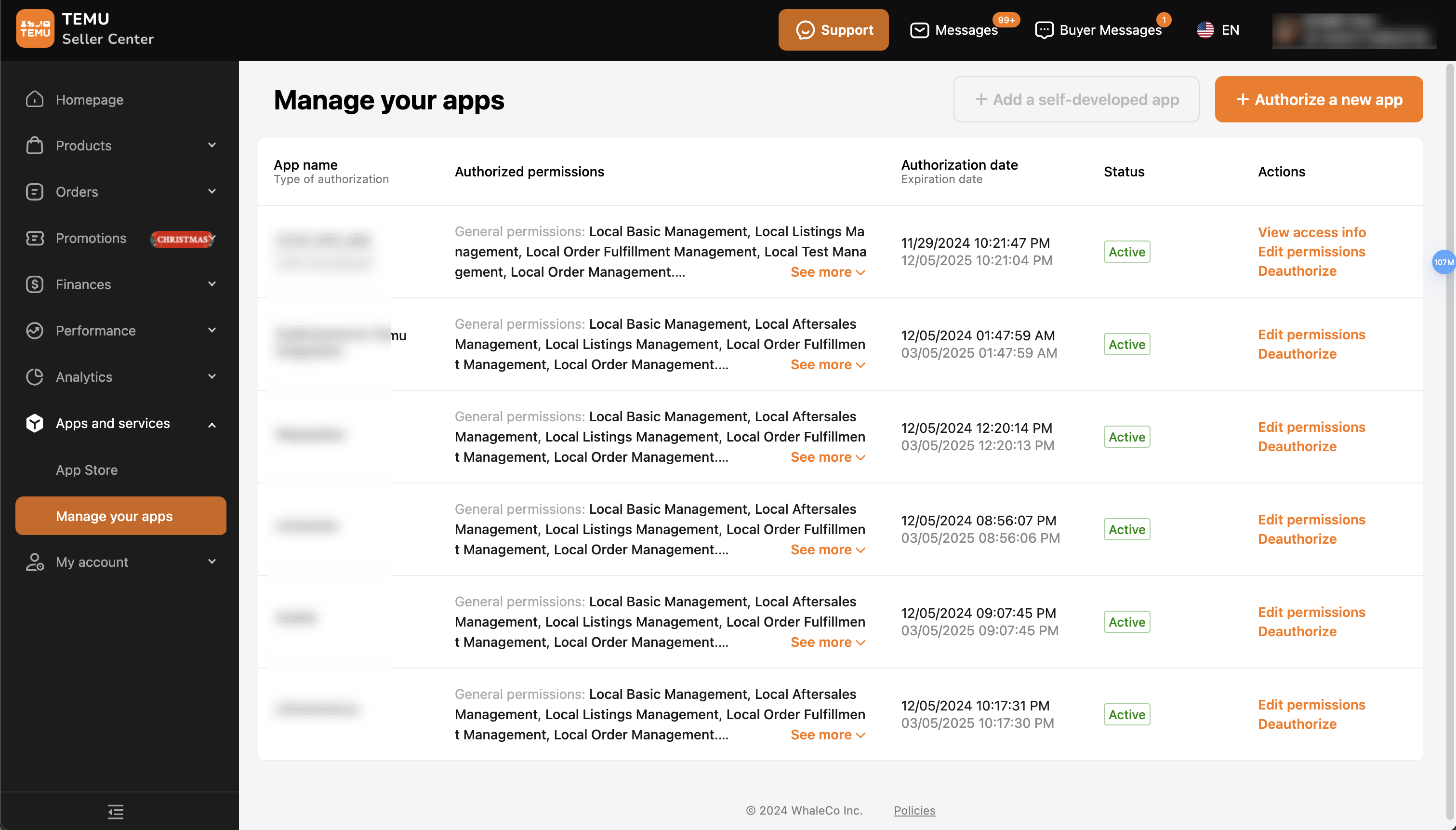
- Click on "Authorize a new app", which will display a list of available systems as shown below.
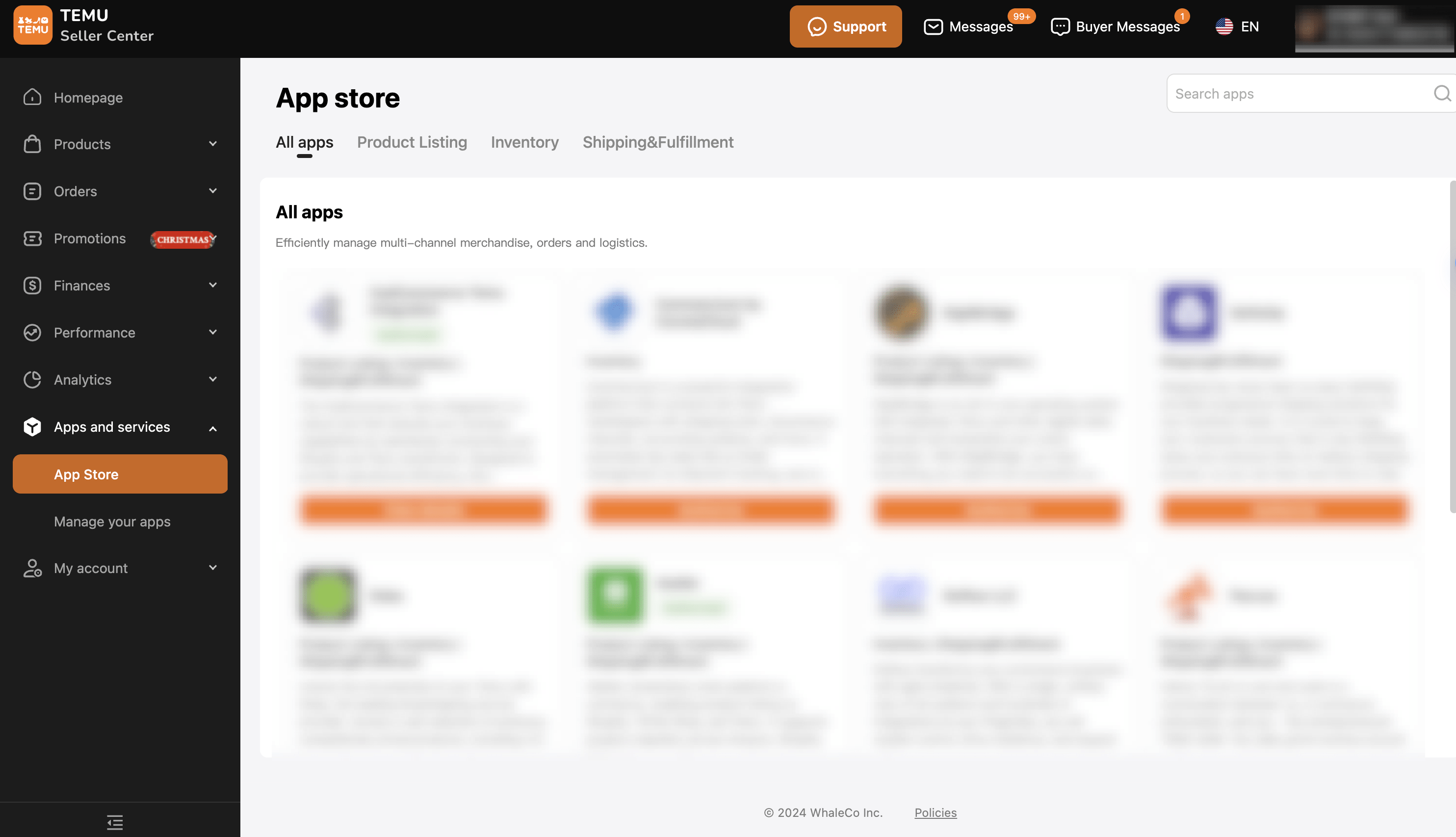
- Select the app name, and the permissions that can be granted to the selected system for the current store will be displayed.
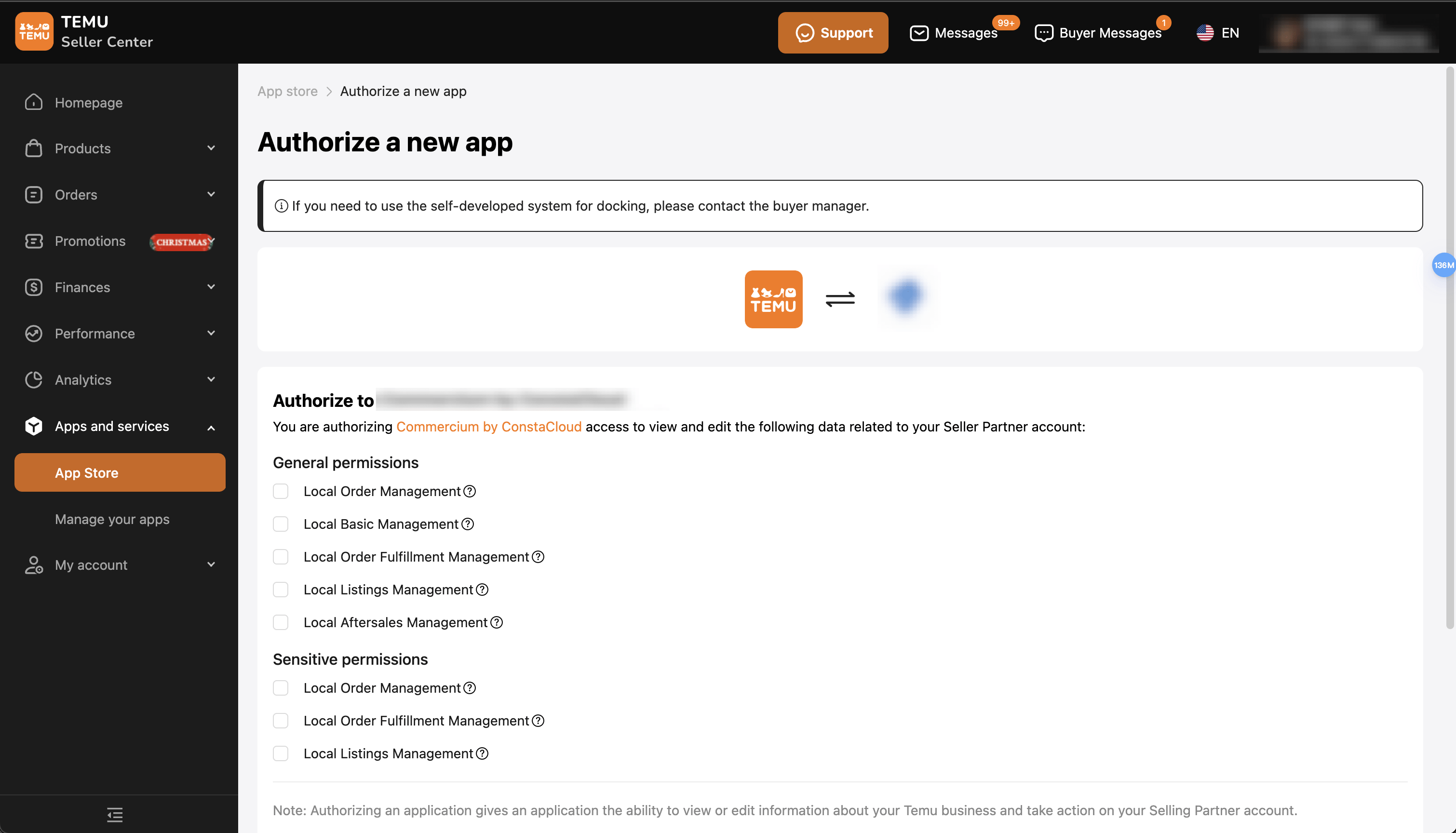
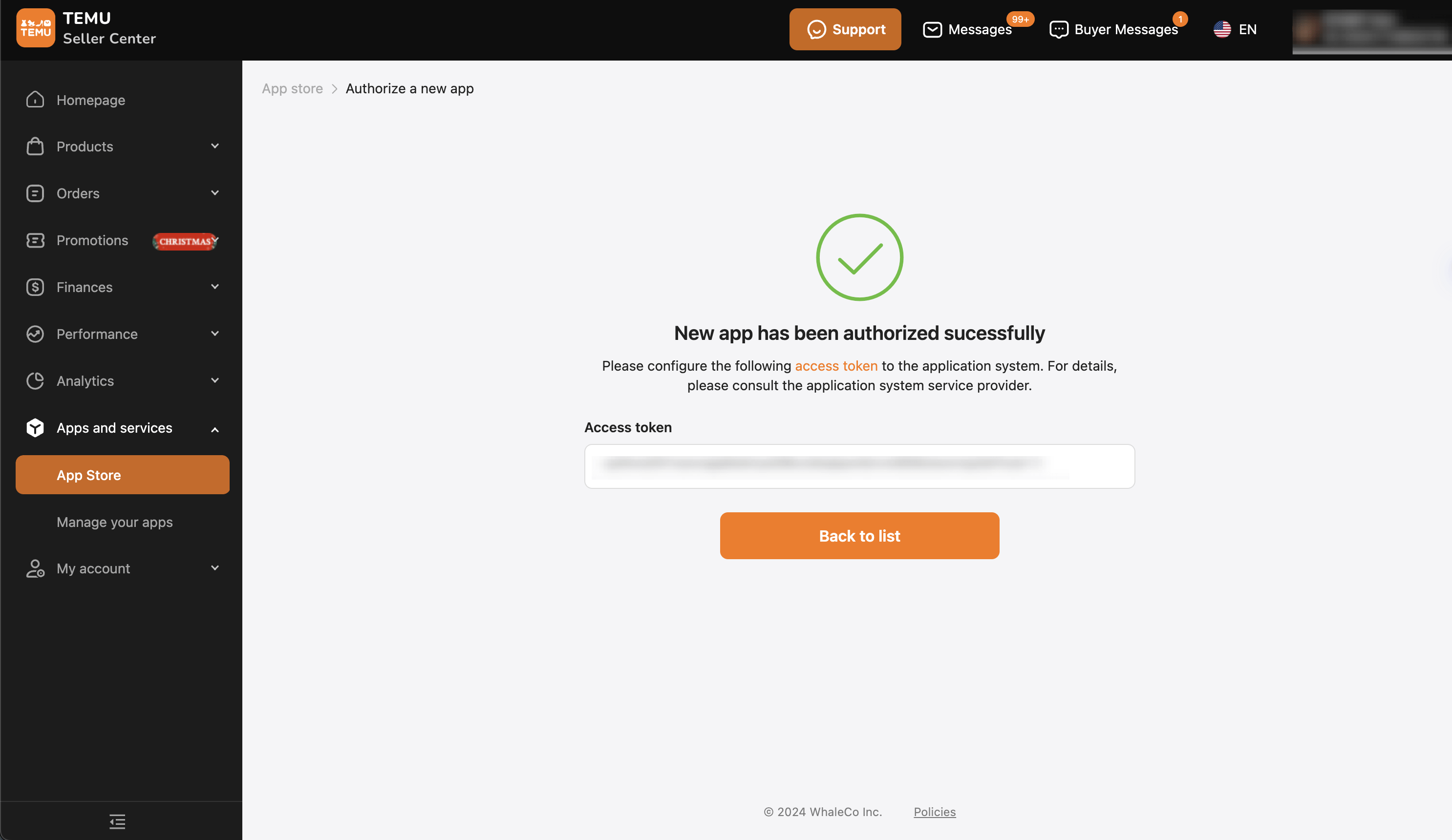
Click "Submit" at the bottom of the page, and the following screen will appear. Copy the Access Token.
2. Connect to Temu
This section guides you through accessing the Connect page and setting up your Temu account connection.
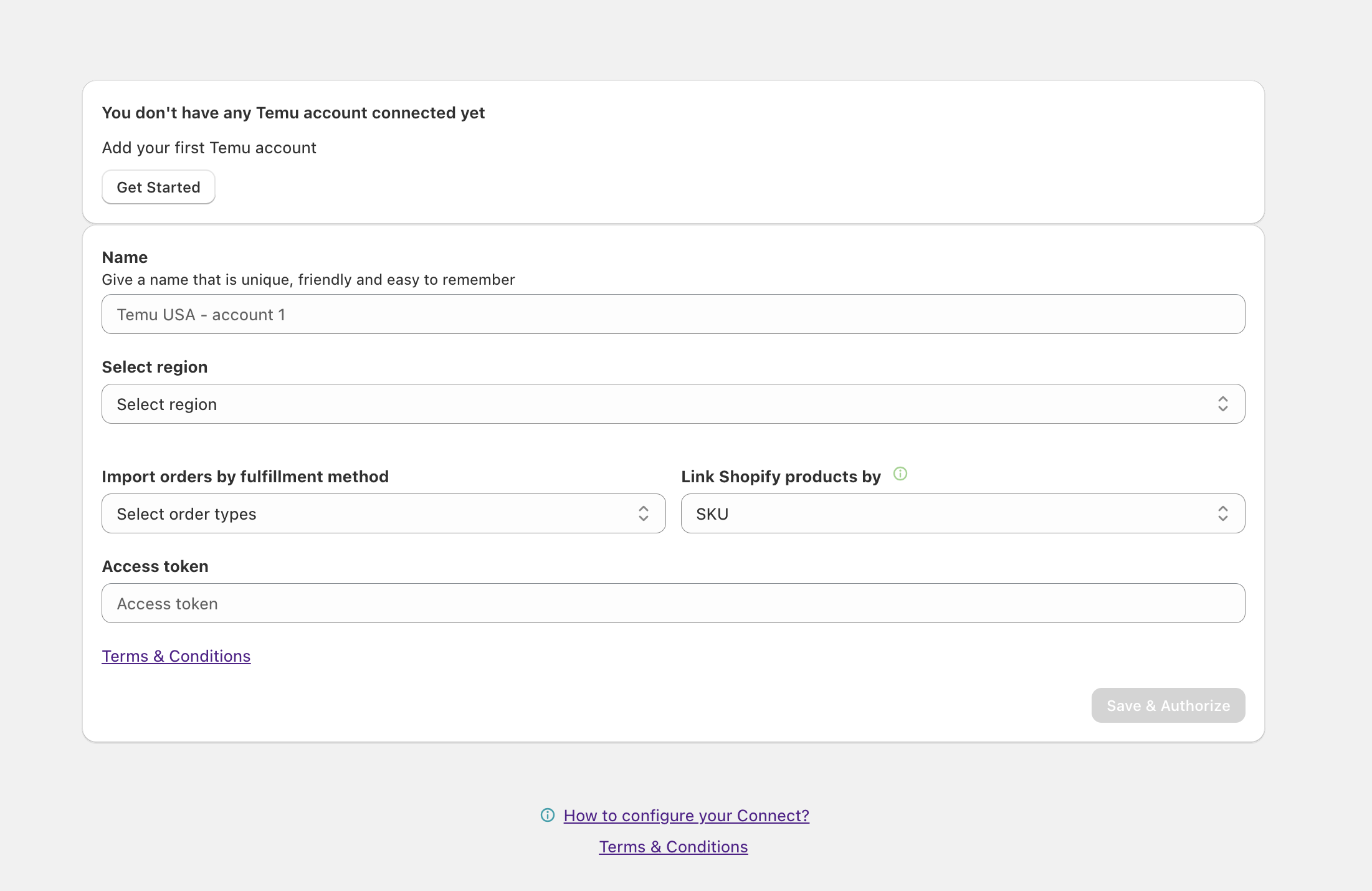
Steps to Connect:
1. Click "Get Started".
2. Enter the account name.
3. Select the region.
4. Select the country (Marketplace).
The region and marketplace you choose will be where you want to work.5. Select the order type:
-Only fulfilled by Seller (FBS)
-Only fulfilled by Temu / Marketplace (FBM)
-Both types of orders
6. Choose how to match products with Shopify:
-SKU
-Barcode
-Custom metafield
If your products have variants, the product variant metafield should be selected from the list below. The metafield must be filled out in a product to be displayed in the list.7. Fill in the access token.
8. Click "Save & Authorize".
🔹 Optional: Upgrade to Pro or Enterprise plans for more features, including connecting multiple regions.
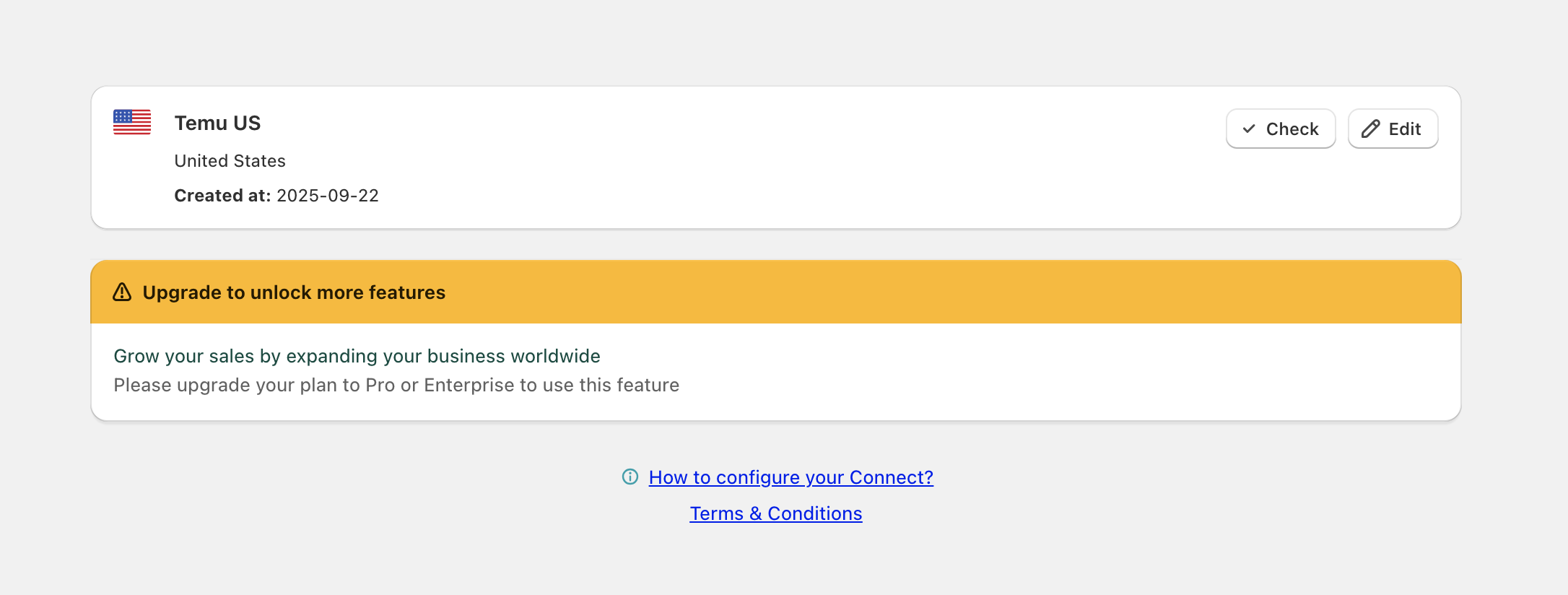
3. Check Connection Status (Optional but Recommended)
- Regularly checking your connection ensures seamless order syncing and minimizes issues.
- Click the "Check" button to verify if your connection to Temu is stable.
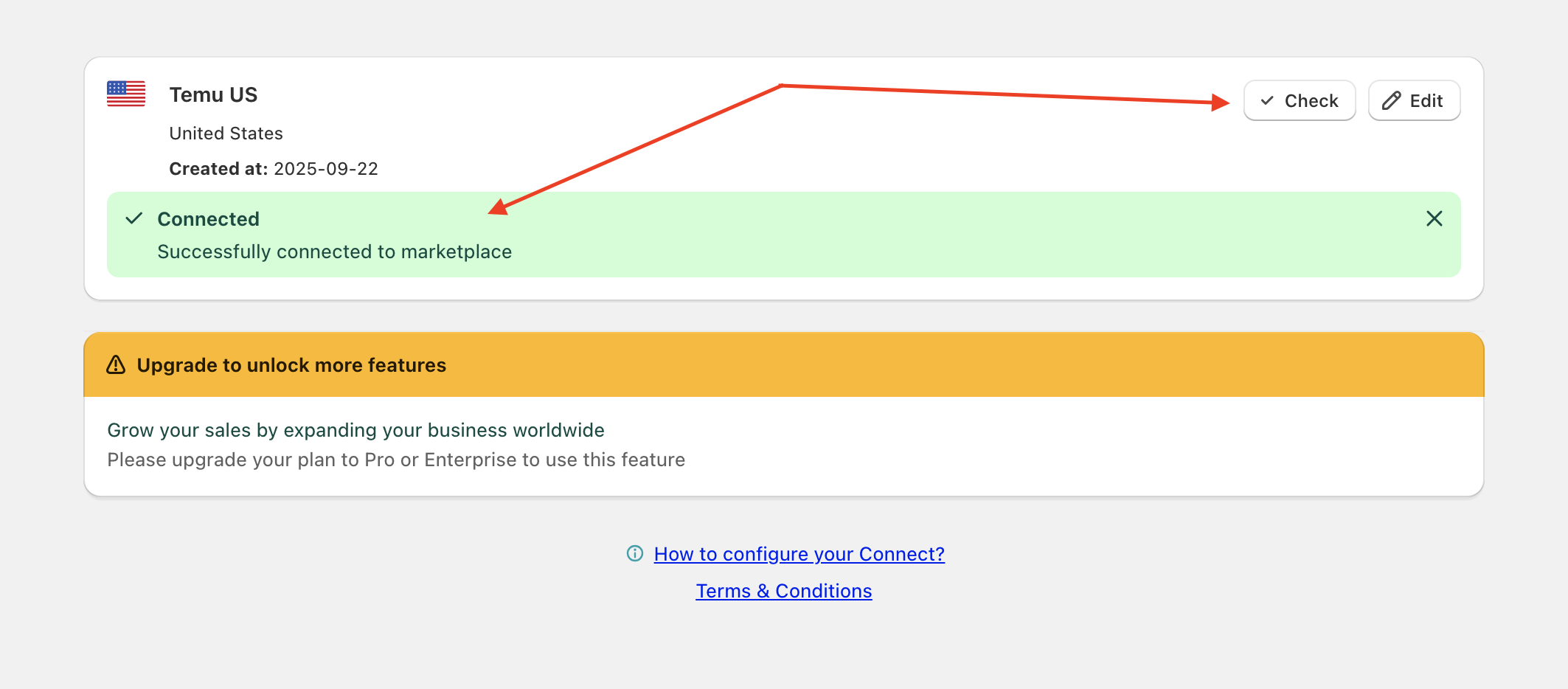
4. Edit or Remove Connection (If needed)
- To manage your connection effectively, you can either edit or remove your Temu account using the "Edit" option.
- Click the "Edit" button at the top right to either edit your account or remove the connection from the current marketplace.
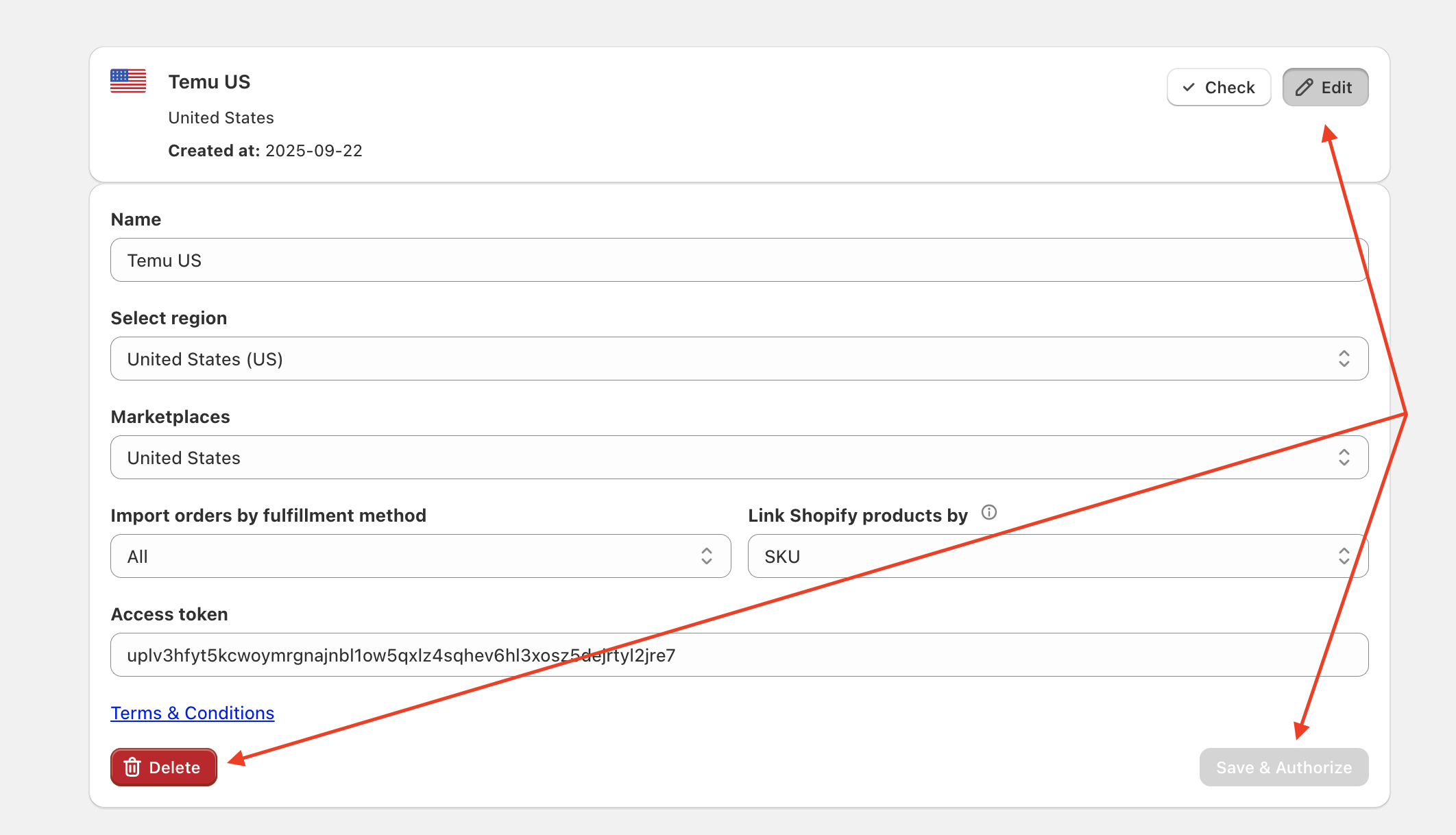
✔ Connection complete! Thank you for choosing our App.
Comments
0 comments
Please sign in to leave a comment.