
Use the Inventory tab in the Easy Tool app to track and sync product quantities between Shopify and Temu. This helps ensure accurate stock data and prevent overselling (selling more items than you have in stock).
Key Features:
- Product List: View, search, and manage your product inventory.
- Sync Product Quantities to Temu: Ensure stock levels are consistently updated across platforms.
- Multi-Marketplace Support: Depending on your plan, manage inventory across multiple marketplaces.
Understanding these features is key to maintaining accurate inventory, optimizing your sales process, and enhancing the customer experience on both platforms.
Product List
1. Navigate to the "Inventory" Page
The Inventory tab contains three sub-tabs:
- Linked Items: Displays products successfully linked (matched) between Shopify and Temu, where you can view SKUs and inventory levels, update quantities, or disable sync for specific items.
Note: Shows active Marketplace (e.g.,
United States) & Linking Rule (e.g.,Linking: Shopify sku = Temu sku). Rule can be SKU, Barcode, or Metafield (set in Connect tab).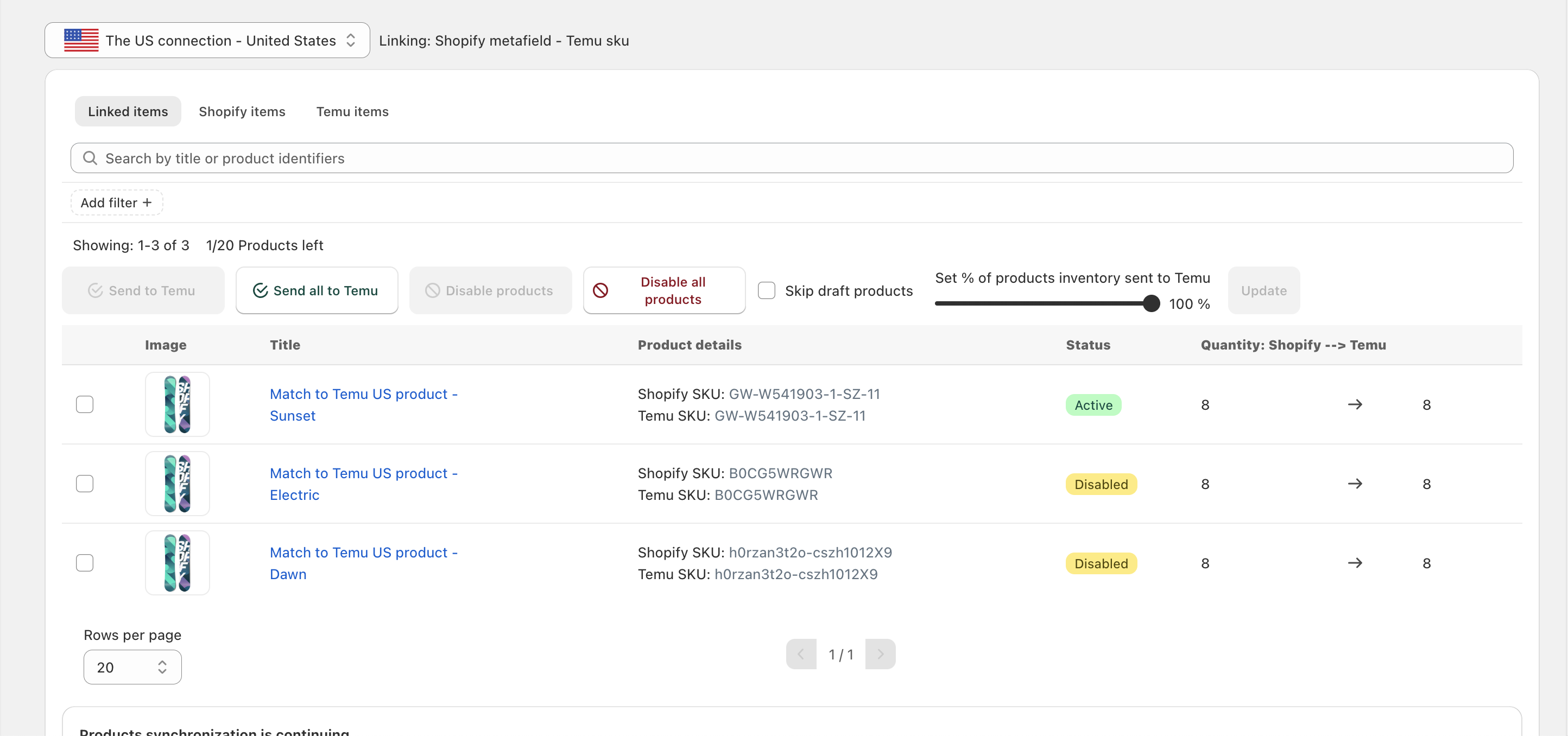
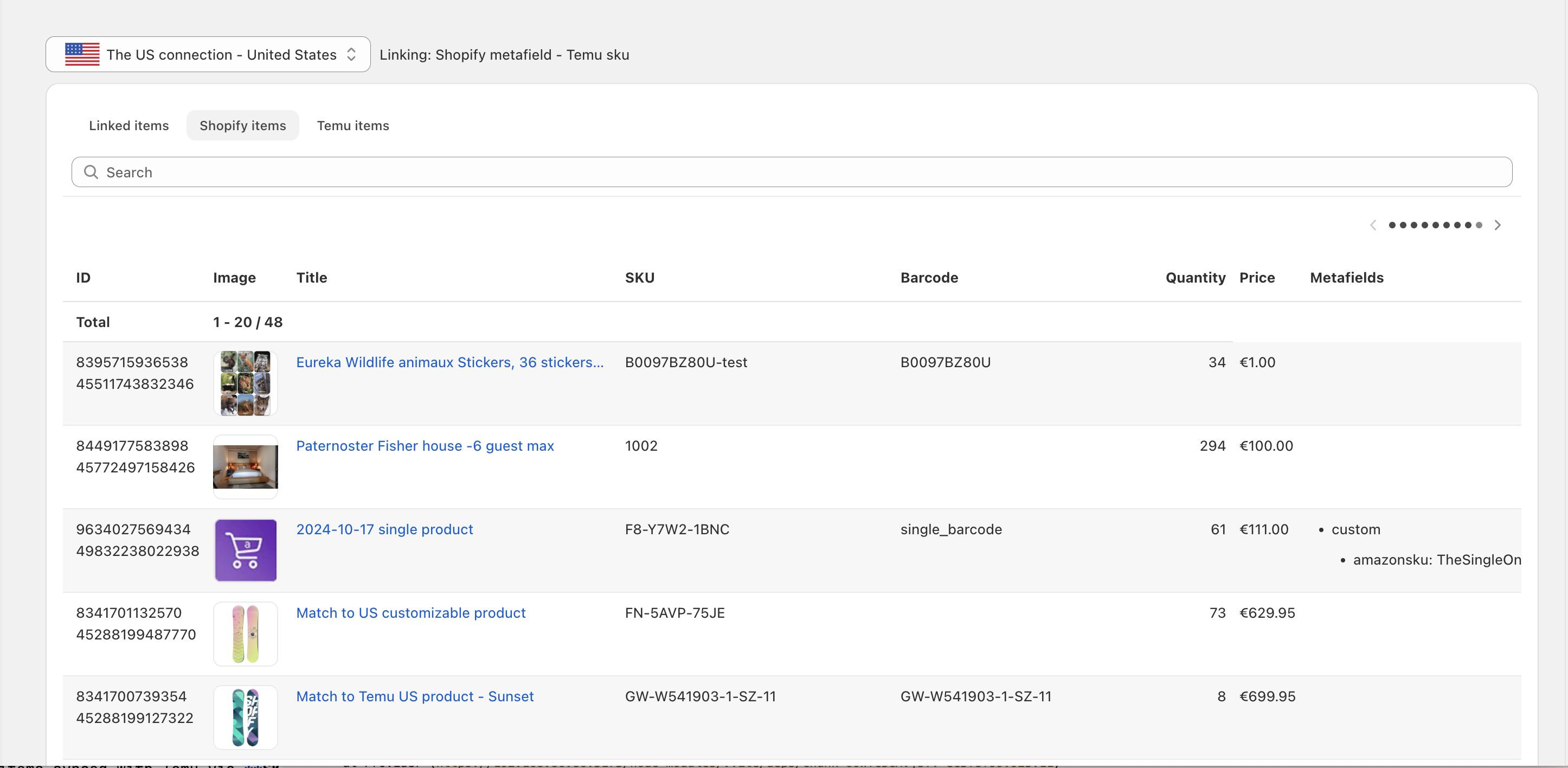
Shopify Items: Lists all products (including variants) from your Shopify store that are available for linking to Temu. If linking via Shopify Metafield, an additional Metafields column will be displayed.
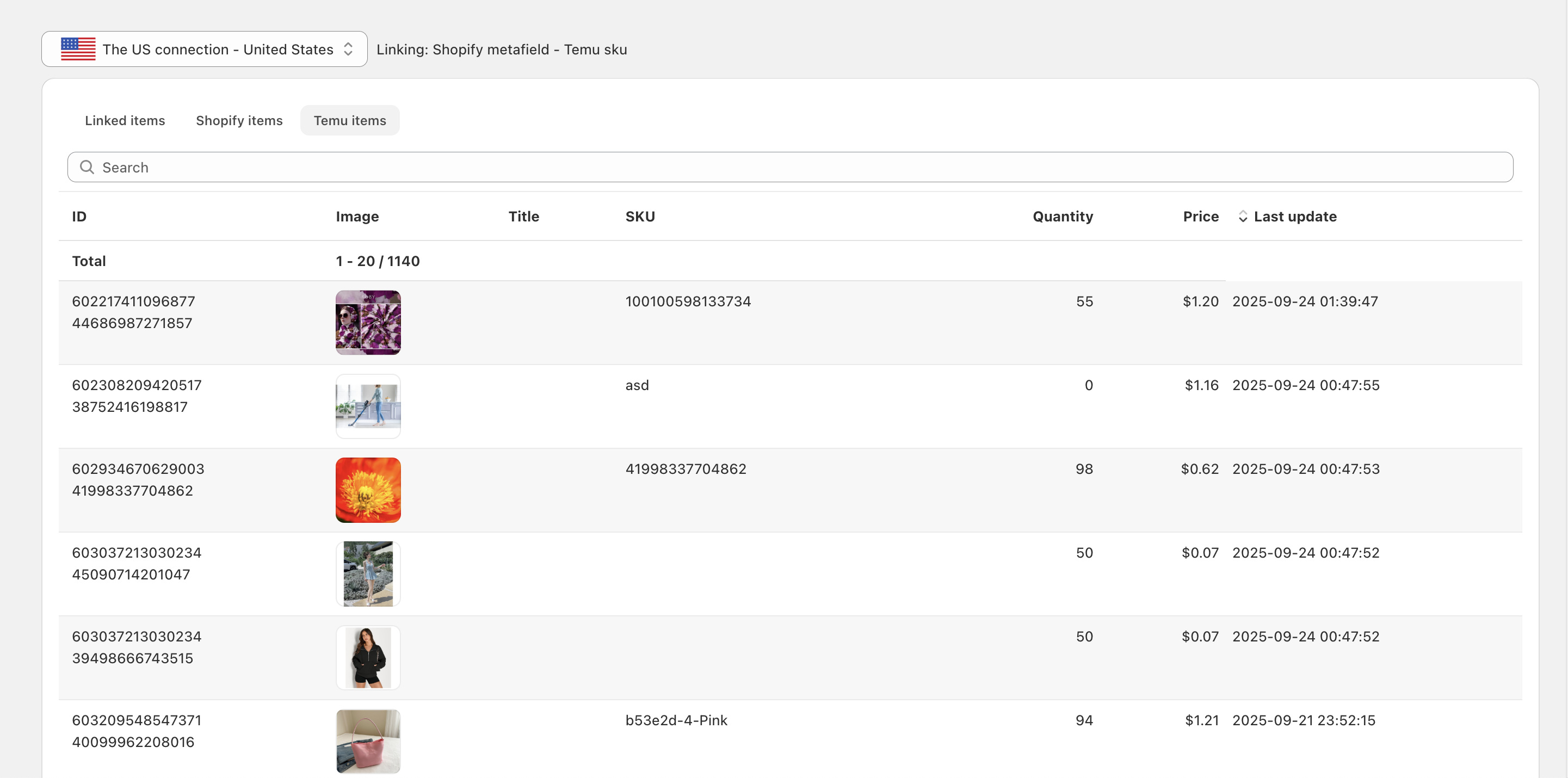
Temu Items: Lists the products you are currently selling on Temu.
2. Product List Overview
How Products are Linked
This list shows items synced with Temu via SKU, Barcode, or Metafield, allowing easy inventory tracking.
Plan Limitations
Your ability to view products from different marketplaces depends on your subscription plan:
- Free plan: Track products from one marketplace in one region.
- Paid plan: View products from multiple marketplaces.
Searching and Filtering
- You can search for products by Name, SKU, or Barcode.
- You can filter products by status: Active (Sync enabled) or Disabled (Sync disabled).
Sync Product Quantities to Temu
Ensure your product inventory stays updated between Shopify and Temu.
1. Set Send Quantity Percentage
- Define the percentage of your Shopify stock that will be sent to Temu. (Example: If you have 100 units on Shopify and set the percentage to 70%, then 70 units will be listed on Temu). This setting is useful if you want to maintain a buffer stock or sell on other channels.
Default setting: 100% of Shopify inventory syncs to Temu.
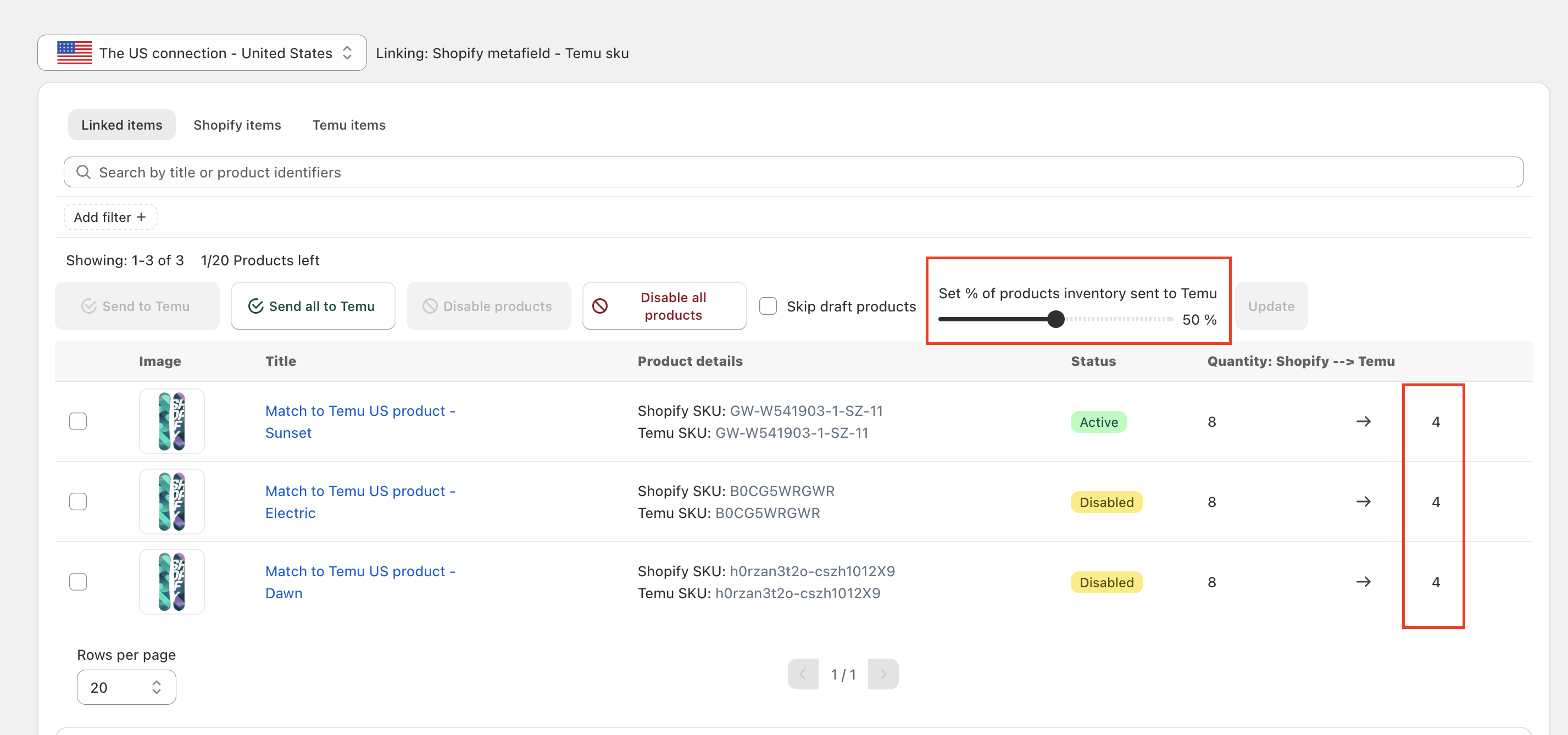
- Click "Update" to save changes.
2. Send to Temu
There are two ways to send (sync) product quantities to Temu:
- Method 1: Send Individual Products
- Select a product → Click "Send to Temu" → The product status updates to Active.
- Note: Allow up to 5 minutes for Temu to reflect the quantity changes. Products with an Active status will automatically sync many times daily.
- Method 2: Send All Products at Once
- Click "Send all to Temu" to sync all products currently linked.
3. Disable Sync
There are two ways to stop syncing product quantities:
- Method 1: Disable Sync for Individual Products
- Select a product → Click "Disable products" to stop automatic sync.
- Method 2: Disable Sync for All Products
- Click "Disable all products" to stop syncing for all listed products.
Common Questions about Inventory Sync
1. How often is the inventory updated?
- Inventory syncs automatically from Shopify to Temu many times a day, depending on your plan.
- You can manually sync anytime using the "Send to Temu" button to push an immediate update when needed.
2. Why didn’t my inventory update after syncing?
There are several potential reasons and steps to check:
- Check SKUs: Ensure the product has the exact same SKU on both Shopify and Temu. This is a common issue.
- Check Status: Make sure the product is Enabled (Active) in the Inventory tab.
- Manual Sync: Try clicking the "Send to Temu" button for that specific product.
- Wait: Sometimes Temu takes extra time to process updates. Allow a few more minutes (up to 5 minutes or potentially longer depending on Temu).
- Contact Support: If you've tried these steps and the inventory still hasn't updated, please contact our support team.
3. How can I check if my product inventory is synced correctly?
- Go to the Linked Items sub-tab within the Inventory tab.
- Verify that the SKU, stock levels, and Sync Status (Active/Disabled) appear as expected.
- Use the search function to quickly find specific products.
4. What happens if I disable inventory sync?
- Disabling sync only stops automatic stock level updates between Shopify and Temu for the selected product(s), no other change to the Temu product(s).
- This can be useful if you want to temporarily pause automatic updates for troubleshooting, or if you prefer to manage stock manually on one platform for a period.
- You can manually update stock again by re-enabling sync (setting status to Active) or using the "Send to Temu" button.
If you need further help, please check out our Help Center or reach out to Support for assistance.
Comments
0 comments
Please sign in to leave a comment.