
This guide is meant to help you prepare your catalog BEFORE connecting to ToolE Temu Easy Sync.
If you want to be able to synch your Shopify store and your Temu Seller Central account, you need to have matching SKUs, otherwise you’ll need to use Barcode or Metafields.
Before we start, please keep in mind the following:
- Your products will be synced either through Shopify SKU, Barcode, or Metafields. This process is meant to find which method is the best suited for your situation, and it may take some time.
1. Introduction to Temu SKU
1.1 What are SKU and Variant SKU? (In Temu)
A SKU (Stock Keeping Unit) is a unique identifier for tracking products, while a Variant SKU refers to individual variations (like size or color) for syncing between Shopify and Temu.
In Temu:
- Each product must have a unique SKU in your inventory.
- Uploading a new SKU creates a new record in Temu's catalog.
- You can create your own SKU and edit it later.
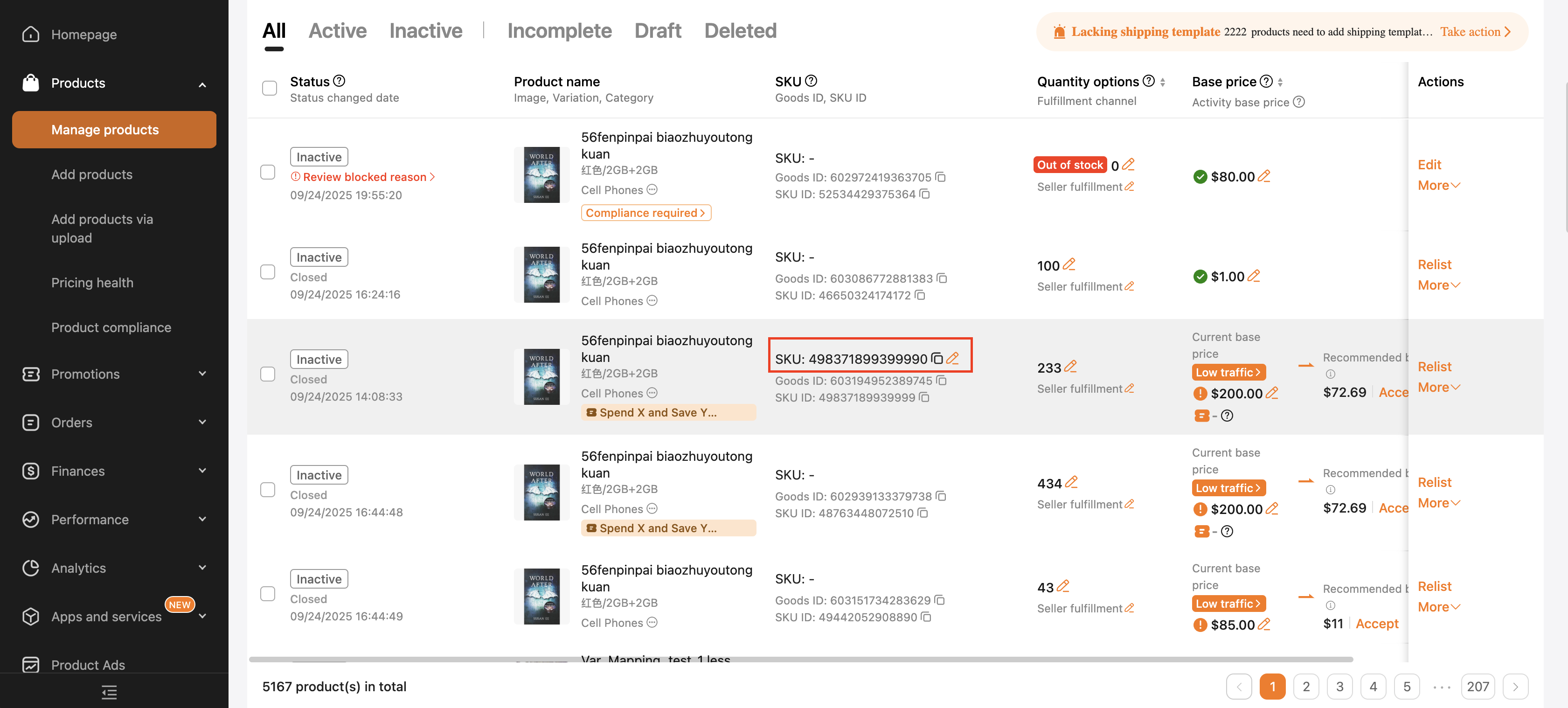
1.2 Where to Find Your SKU:
- Log into Temu Seller Central.
- Navigate to the Manage Products section.
Locate your SKU in the corresponding column.
2. Connecting Shopify Products to Temu: Three Effective Methods
2.1 Connect Your Shopify Products to Temu Using SKU
Match Shopify SKU with Temu SKU. Connecting your Shopify products to Temu with SKUs (Stock Keeping Units) is quick and easy! Just follow these simple steps:
Steps to Connect Using SKU:
- Find Your SKU on Temu:
- Log in to your Temu Seller Central.
- Go to Manage Products.
- Look for the SKU of the product you want to link.
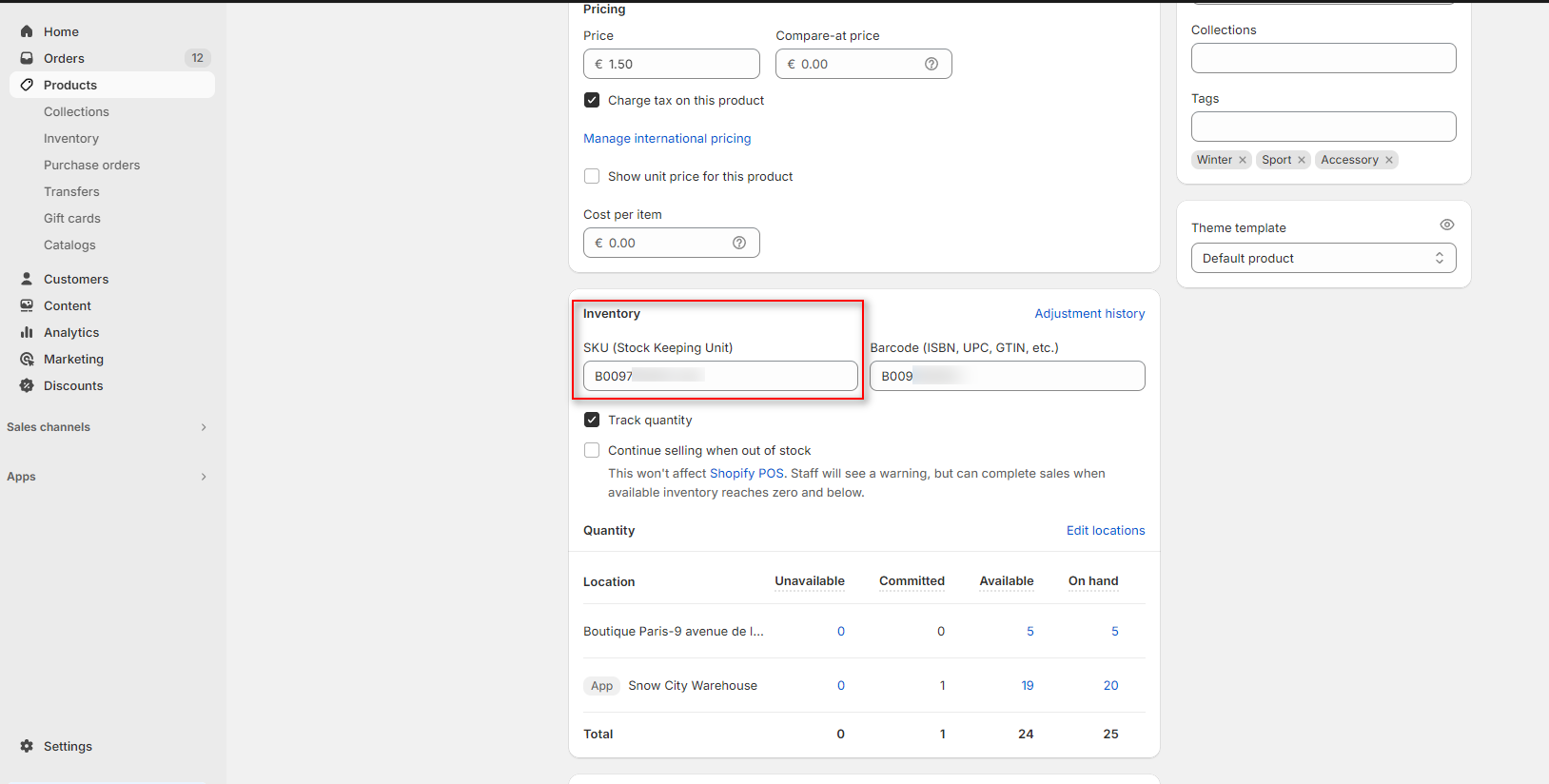
- Check Your SKU on Shopify:
- Open your Shopify Admin.
- Click on Products and select the product.
Scroll down to see the SKU. Make sure it matches the one from Temu!
- Sync Using SKU:
When importing products, select the field for import as SKU.
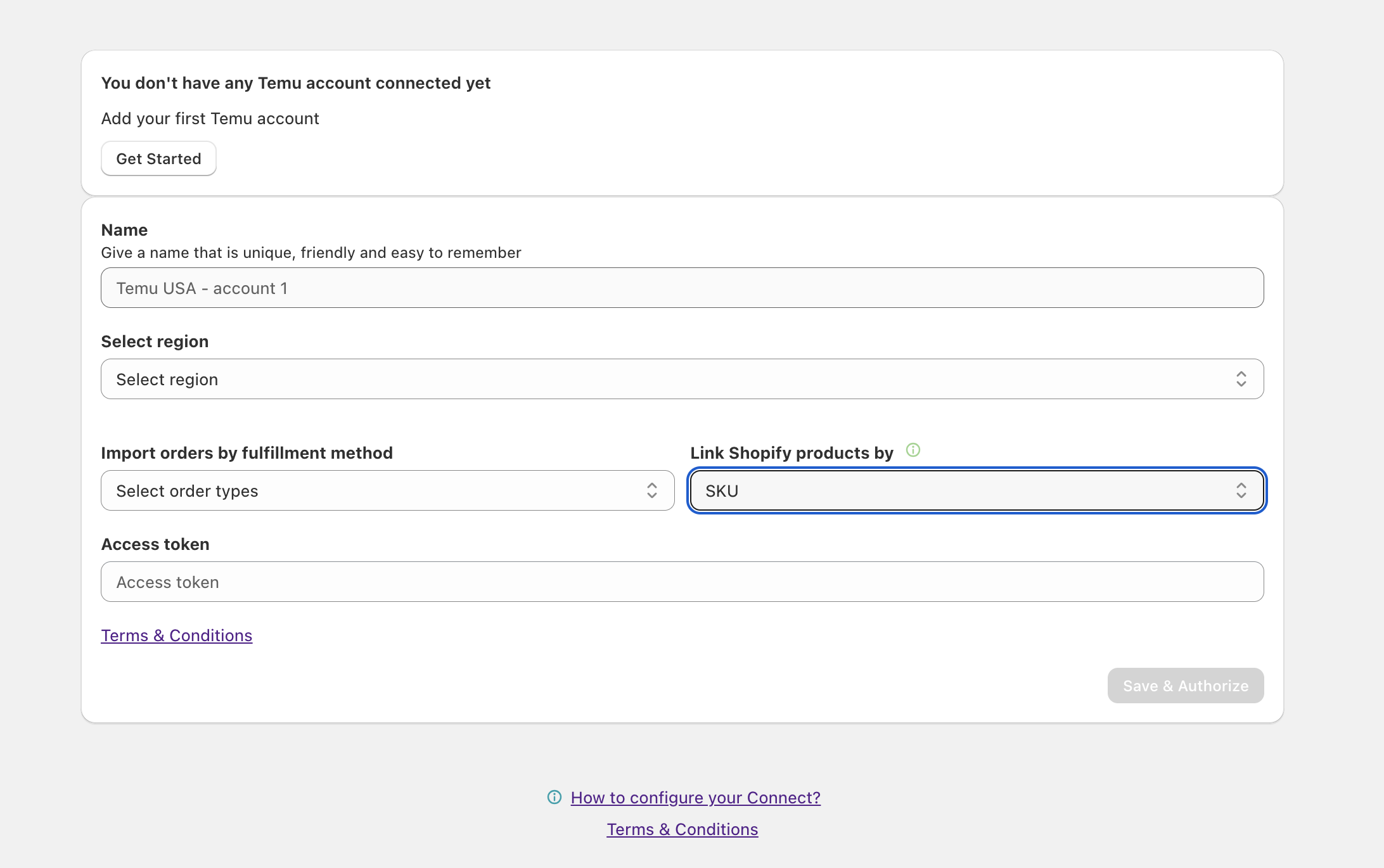
All products with matching SKUs will be automatically synced to the app. That’s it! By matching SKUs, you can easily manage your inventory between Shopify and Temu. Happy selling!
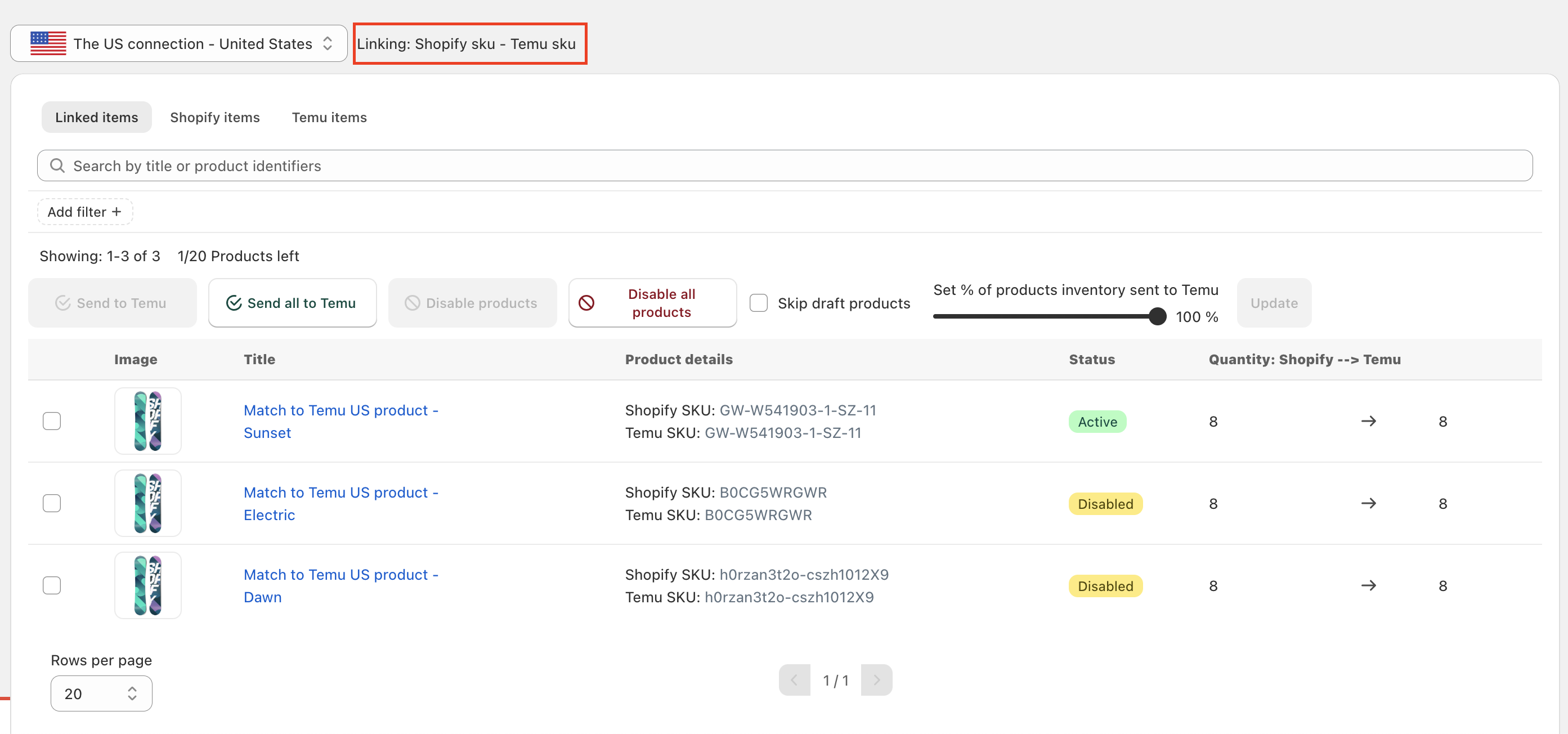
Ideal situations for using the "SKU" mapping method:
- When your Shopify and Temu SKUs are the same: If the SKUs match on both platforms, this is the easiest and fastest way to sync your products.
- For stores with simple products: If your store doesn't have many different product variations or complex setups, using SKUs to connect Shopify and Temu works smoothly.
2.2 Connect Your Shopify Products to Temu Using Barcode
Match Shopify Barcode with Temu SKU. Barcode is ideal for syncing products when SKUs on Shopify and Temu don’t match, providing a seamless connection and simplifying inventory management.
Steps to Connect Using Barcode:
- Find Your Product’s SKU on Temu (Used for Barcode Mapping):
- Log in to Temu Seller Central and go to Manage Products.
- Locate the SKU for the product you want to connect.
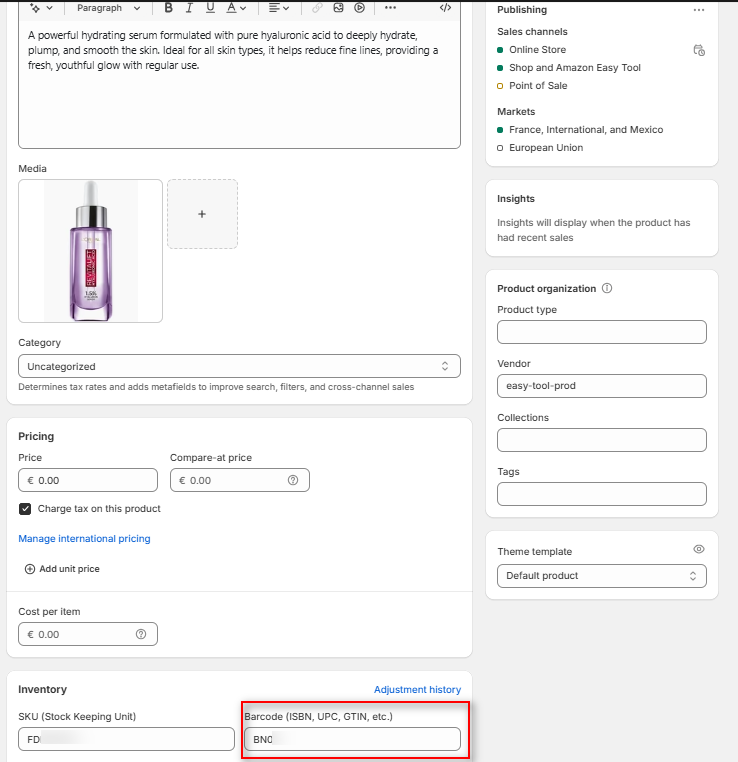
- Check Your Barcode on Shopify:
- Open your Shopify Admin, go to Products, and select the product.
Scroll down to make sure the Barcode on Shopify corresponds to the SKU used on Temu.
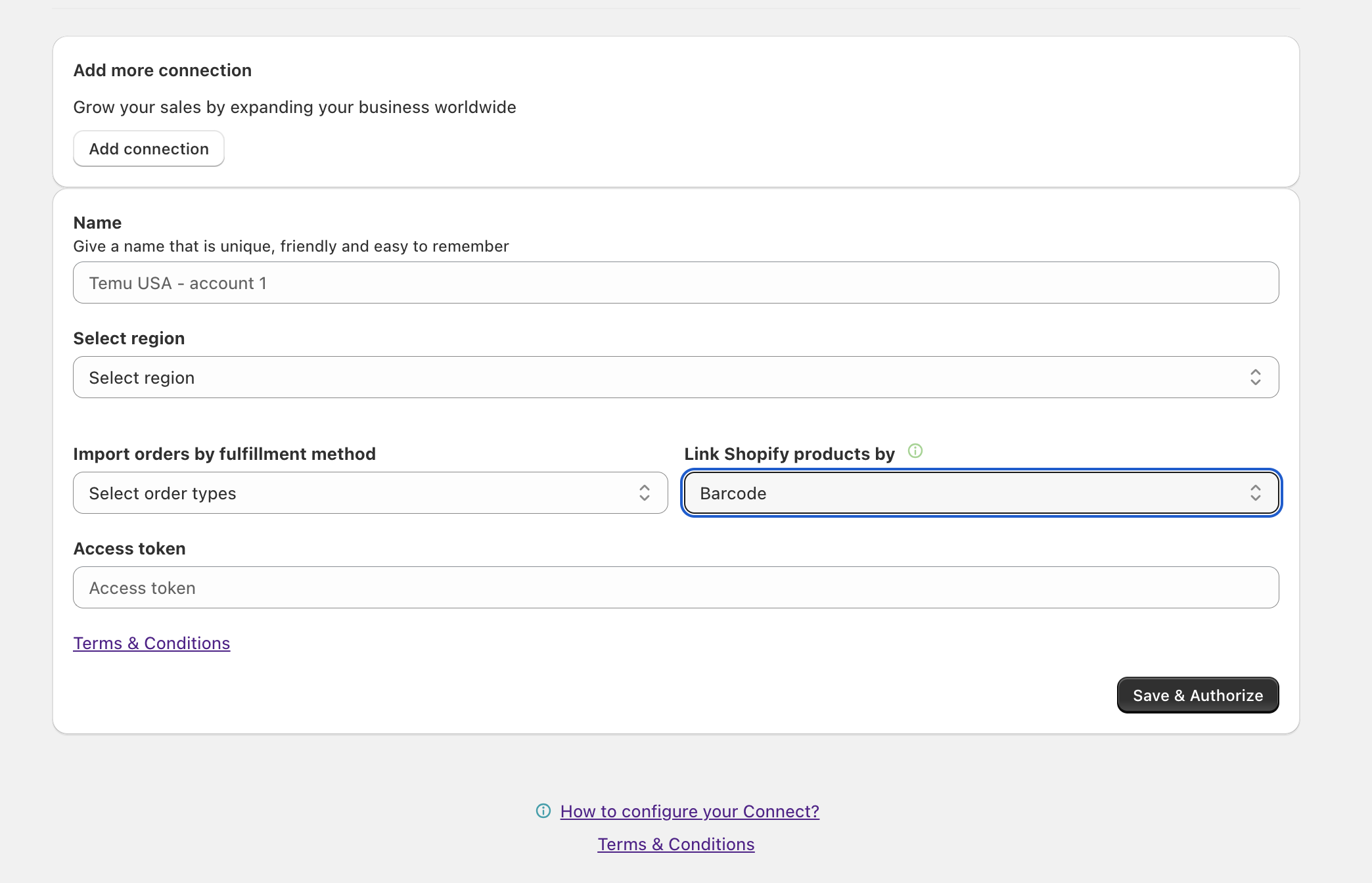
- Sync Using Barcode:
When importing products, select the Barcode option.
Products with matching Barcode (mapped to SKUs) will automatically sync to the app. That’s it! Syncing by Barcode makes inventory management easier, ensuring your stock is always up to date. Happy selling!
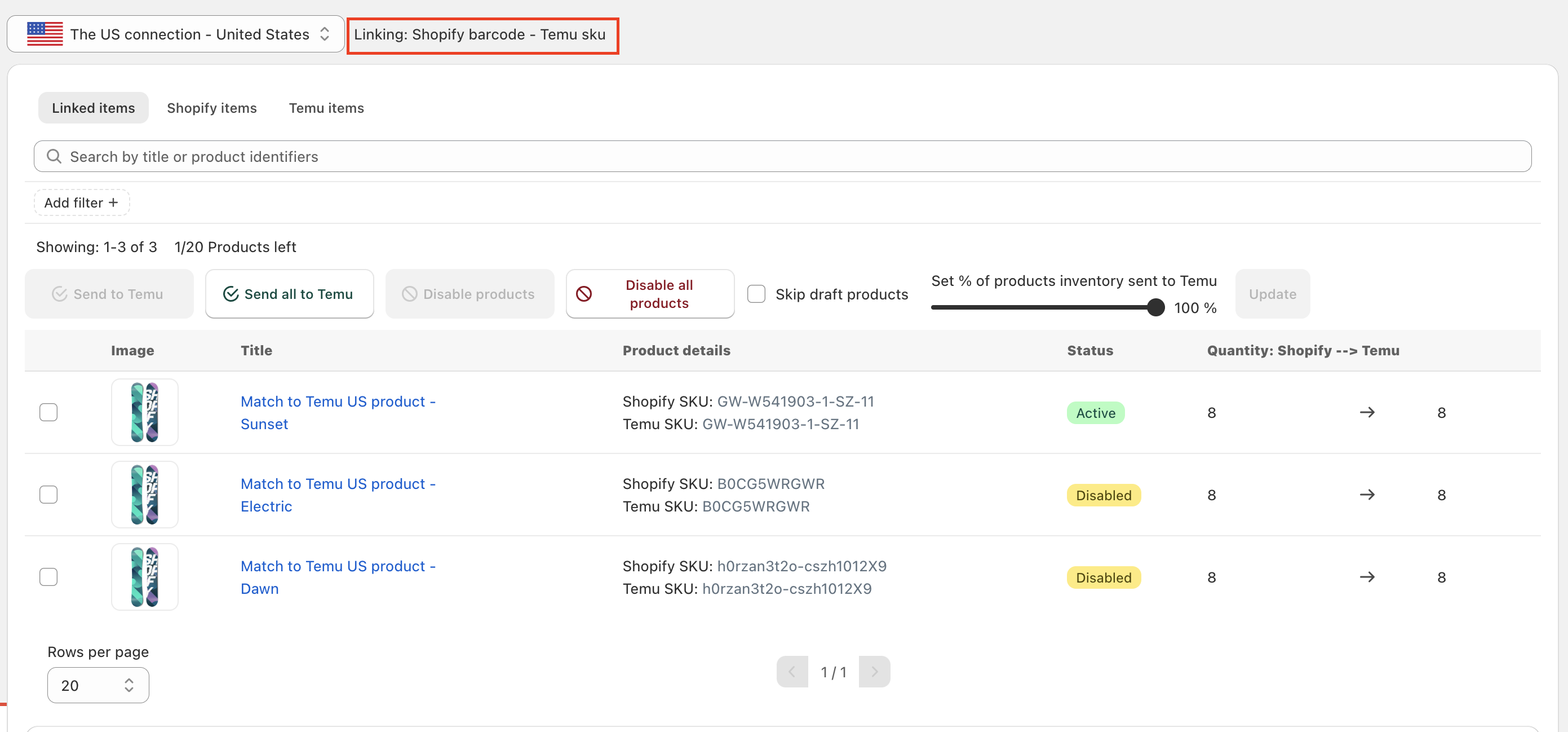
Ideal situations for using the "Barcode" mapping method:
- When SKUs are different but you have Barcodes: If the SKUs on Shopify and Temu don’t match, but your products are tagged with barcode, barcode mapping is the best solution to sync them.
- When Shopify has Barcode, but Temu has SKUs: If your products on Shopify have Barcode that match the SKUs on Temu, you can leverage Barcode for a quick and easy sync.
2.3 Connect Your Shopify Products to Temu Using Metafields
Match Shopify Metafields with Temu SKU. Metafields provide a flexible way to connect your Shopify products to Temu when SKUs or Barcode don’t align. You can assign a unique identifier using either product or variant-level Metafields to enable smooth synchronization.
What Are Product and Variant Metafields?
- Product Metafields: Used for the entire product, replacing the SKU as the main identifier for syncing.
- Variant Metafields: Applied at the variant level (e.g., size or color), allowing unique identifiers for each product variant.
Steps to Connect Using Metafields:
- Setting Up Metafields in Shopify:
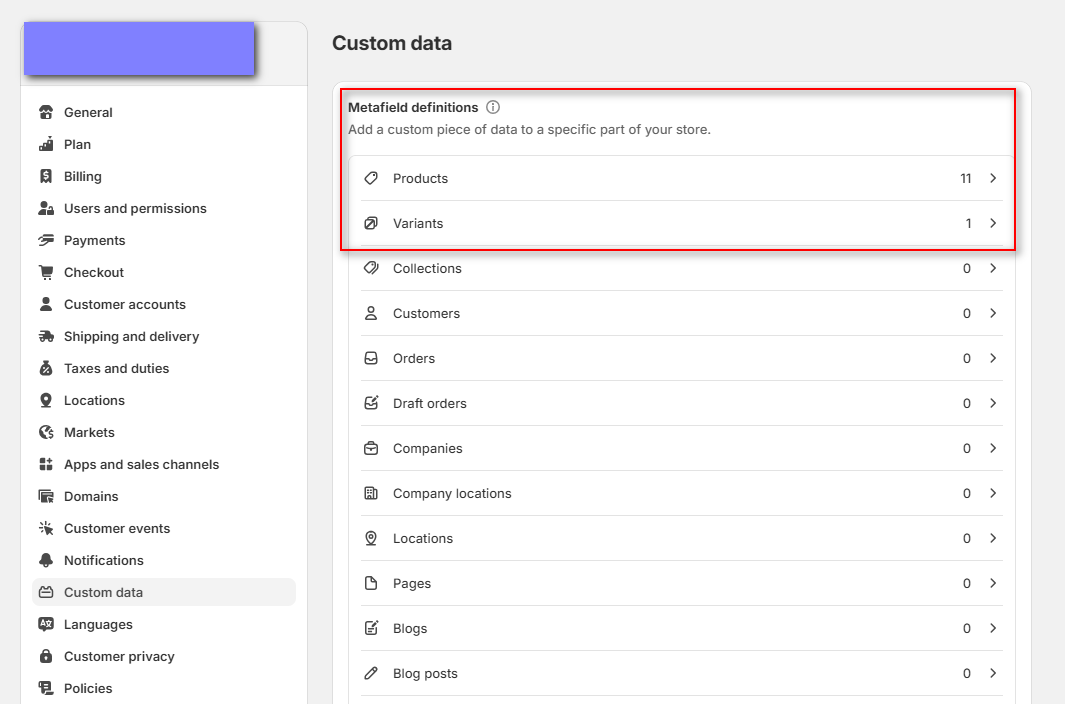
- Go to Settings > Custom Data in your Shopify Admin.
Choose Products for a general product identifier or Variants for specific product variations.
- Create a New Metafields Definition:
- Click Add definition to create your custom Metafields.
For a product-wide identifier, select Products; for a variant-specific one, select Variants.
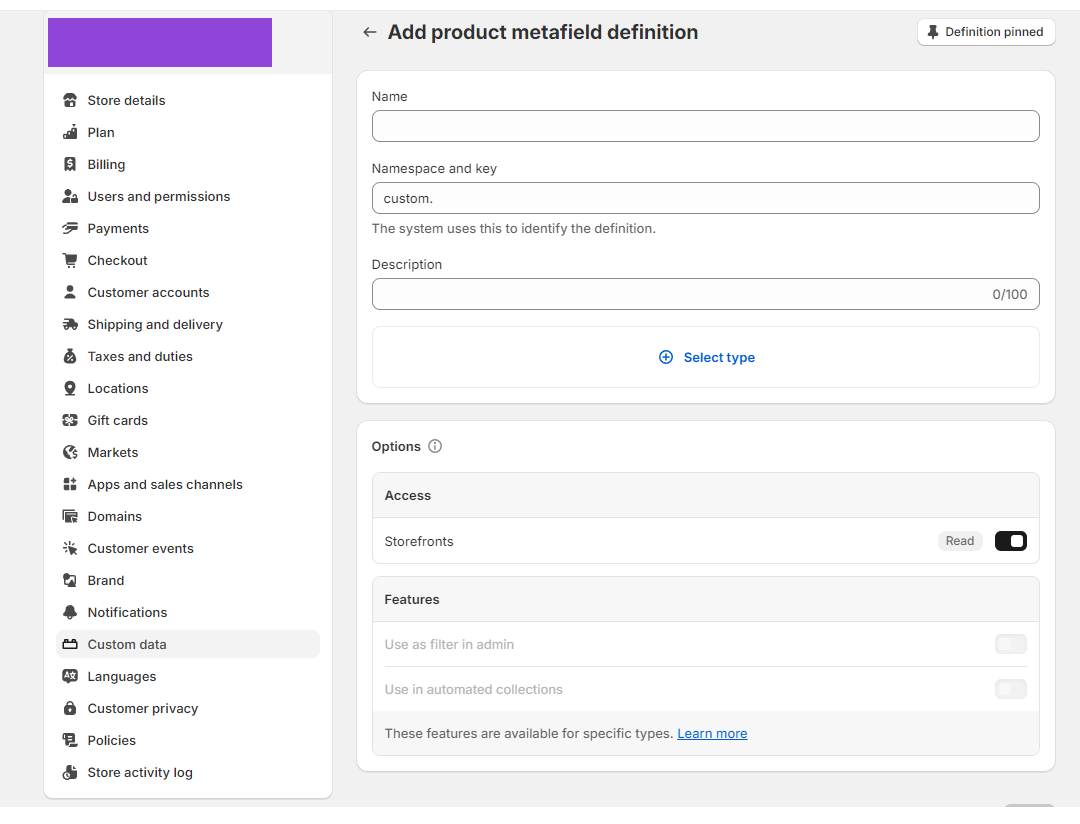
- Define Your Metafields:
- Give your Metafields clear and simple names so they’re easy to manage and use later.
In Select Type, choose "Single Line Text".
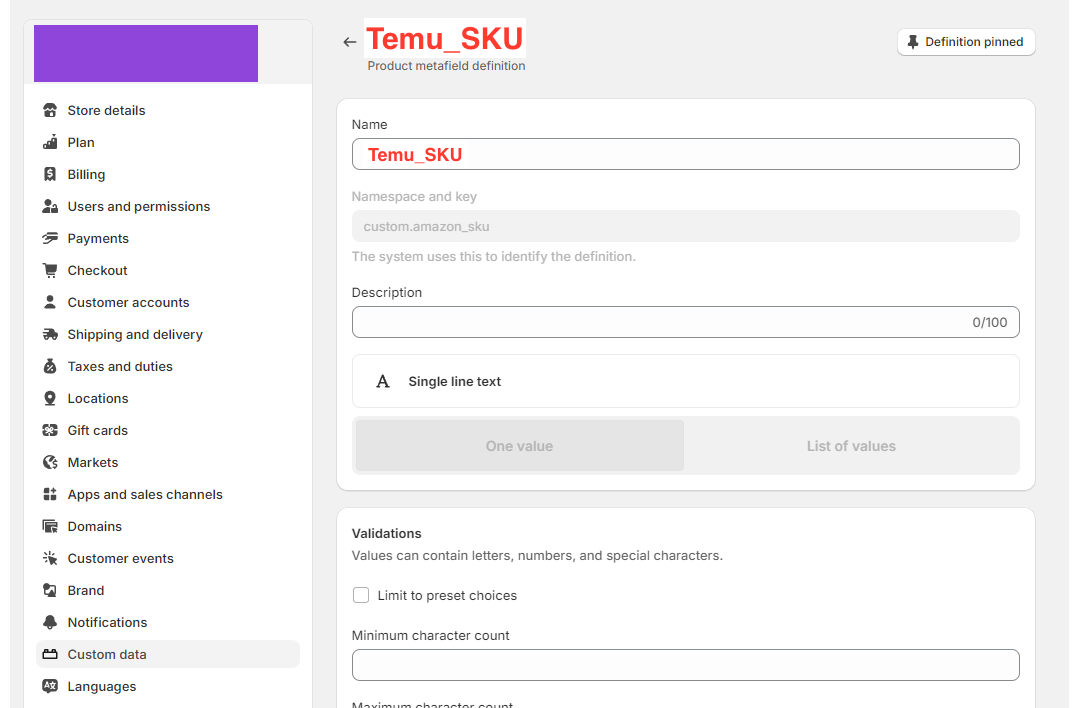
Apply and Save Metafields Values:
- After defining the Metafields, open your product in Shopify and scroll to find the new Temu SKU section. Enter the Temu SKU here.
For variant-specific products, select each variant and fill in the new Metafields with the matching Temu SKU.
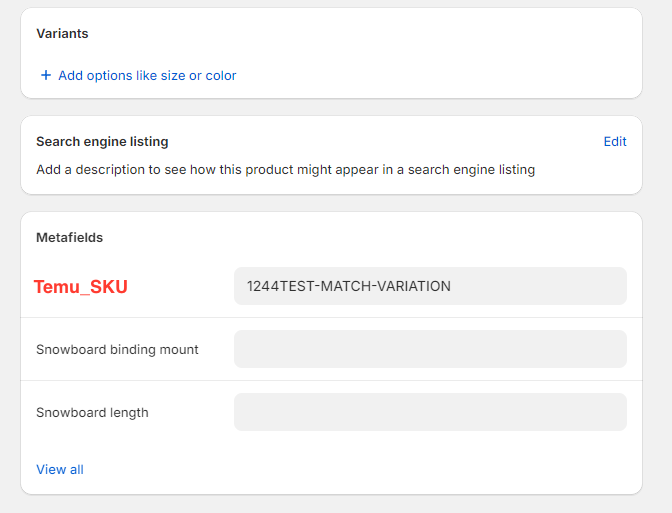
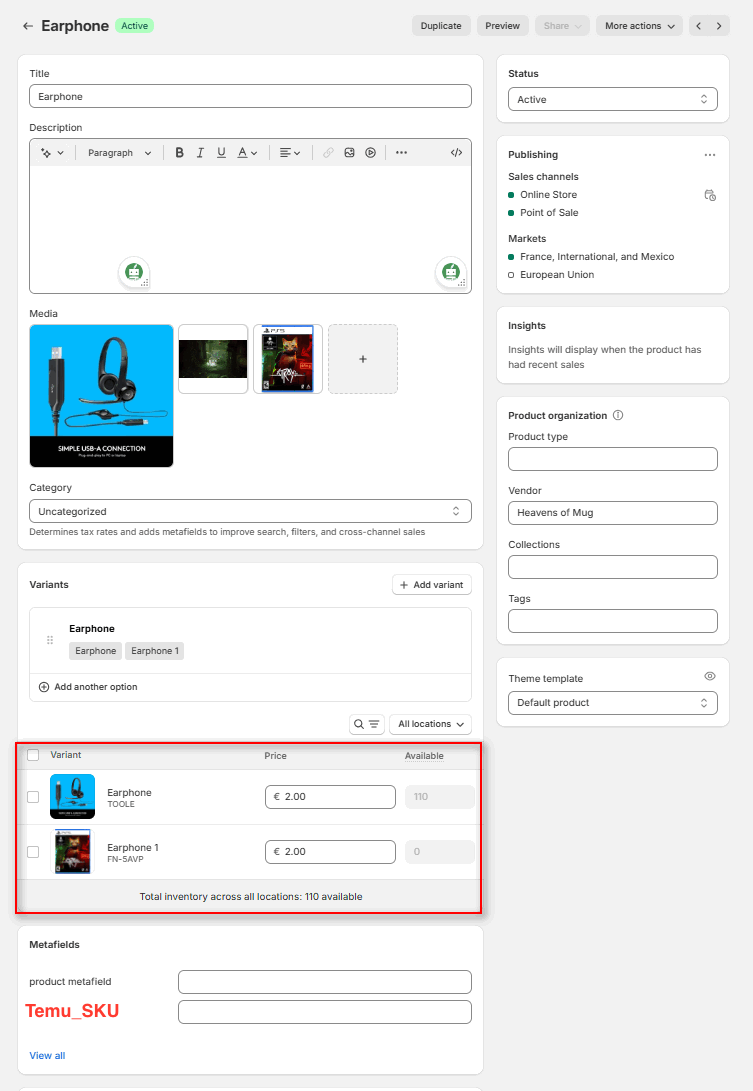
Tip: Using the same Metafield name for both a product and its variations (such as size or color) ensures that all versions of the product will sync correctly in the inventory tab. This maintains consistency and streamlines the management of your products and their variants.
- Final Steps in ToolE Temu Easy Sync:
- Reconnect the ToolE Temu Easy Sync App and go to the Connect tab.
In Link Shopify products by, select the Metafields you created
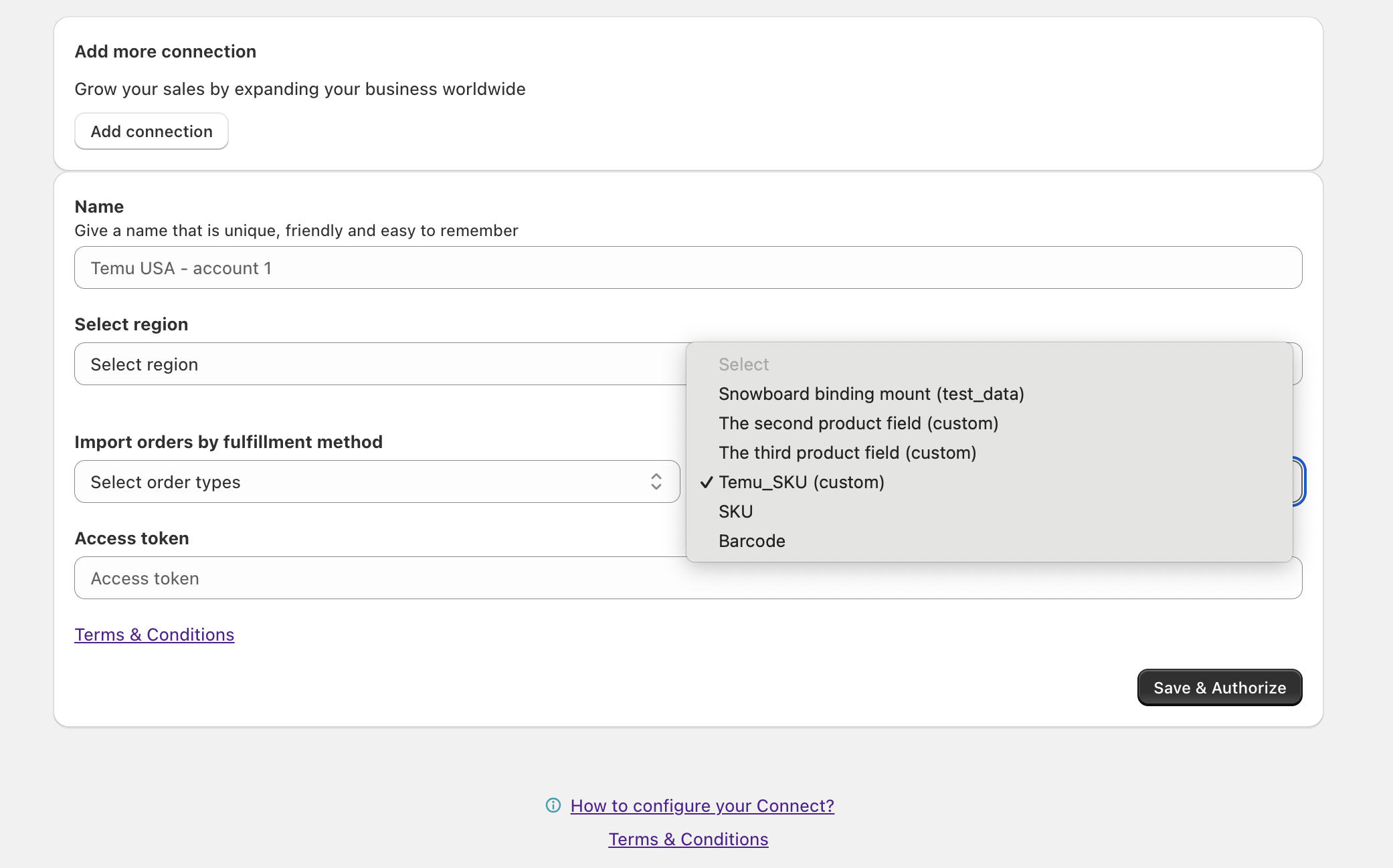
Once reconnected, any product with a Metafield that matches a Temu SKU will automatically appear in the Inventory tab, just like with other connection methods.
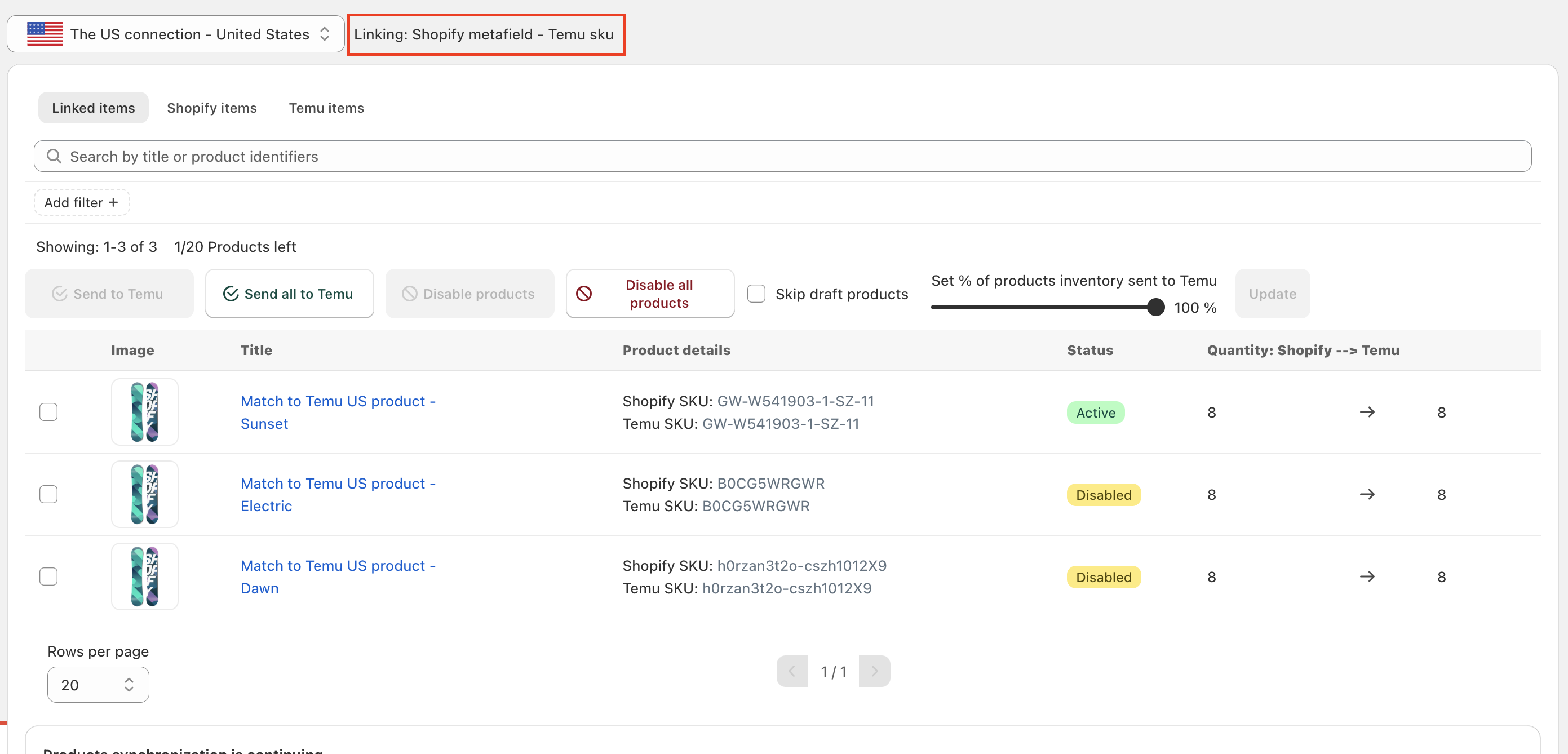
Ideal situations for using the "Metafields" mapping method:
- Best for stores with complex products or varying product attributes: Use Metafields when SKUs or Barcode aren’t sufficient to manage the connection, especially for stores with multiple product variations.
- Best for stores needing flexibility and custom identifiers: Use Metafields if you need to create custom identifiers that go beyond SKUs or Barcode.
By following these steps, you can achieve seamless synchronization between your Shopify store and Temu, greatly improving your product management! Wishing you all the best in your e-commerce journey!
Comments
0 comments
Please sign in to leave a comment.