
Welcome to our guide on managing your orders with Amazon Easy Sync App, in this article we will cover the following points:
- Order Listing
- Fulfill Orders
- Custom order / Order with customization:
- Cancel Orders
- Refund Orders
-
Manual Order Import
Additional Features: - Customer Tags
- Billing Address Forming
- Gift Messages
Our dedicated support team is available 24/7 to assist you on your journey to success. You can find our contact details at the bottom of this article.
Processing orders
Once you complete your setup and successfully connect your Amazon account to the app, your orders will automatically sync to the Orders tab. Please note that only new orders placed after the connection is established will sync. Orders placed prior to this connection will not sync automatically. If you need to import previous orders, please consult: 5. Manual Order Import .
1 Order Listing:
1.1 Order Received : Orders will appear in the Amazon Easy Tool app's Orders tab, categorized as MFN, AFN, or Closed.
1.2 MFN Orders : When an MFN order is placed, it will be sent to the MFN tab under Orders.
1.3 Amazon Payment Validation : The order will display as Inactive in the app for up to 35 minutes while Amazon verifies it. If validation takes longer, you can check the order status in Amazon Seller Central. If it remains unvalidated, we cannot force the order into Shopify.
2. Fulfill orders
2.1 Shopify Import : The order will be imported into your Shopify store.
2.2 Shopify Fulfillment : You or your 3PL can fulfill the order in Shopify as usual. It's essential to fulfill orders promptly to avoid late shipping marks on your Amazon account.
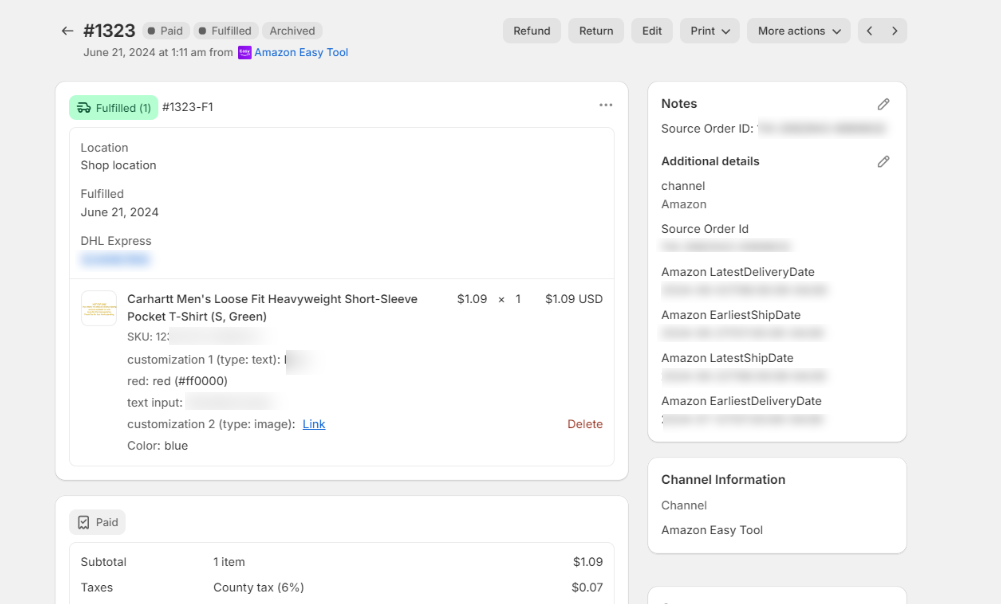
What happens after you fulfill via Shopify: The product quantity in Shopify will be deducted according to the order's quantity.
2.3 Seller Central Update : Once an order is marked as fulfilled in the app, the update will be reflected in Seller Central within a few minutes. The product quantity in Shopify will automatically be adjusted based on the order quantity. Please note that processing status updates may take 3-5 minutes.
2.4 Order Movement : Once fulfilled, the order will move to the Closed tab within the Orders menu.
2.5 Order Search : You can search for orders by order ID or SKU or filter them by date.
3. Custom order / Order with customization:
3.1 No setup is required for custom orders. Customization data will automatically import into Shopify with the order.
Example
Amazon order 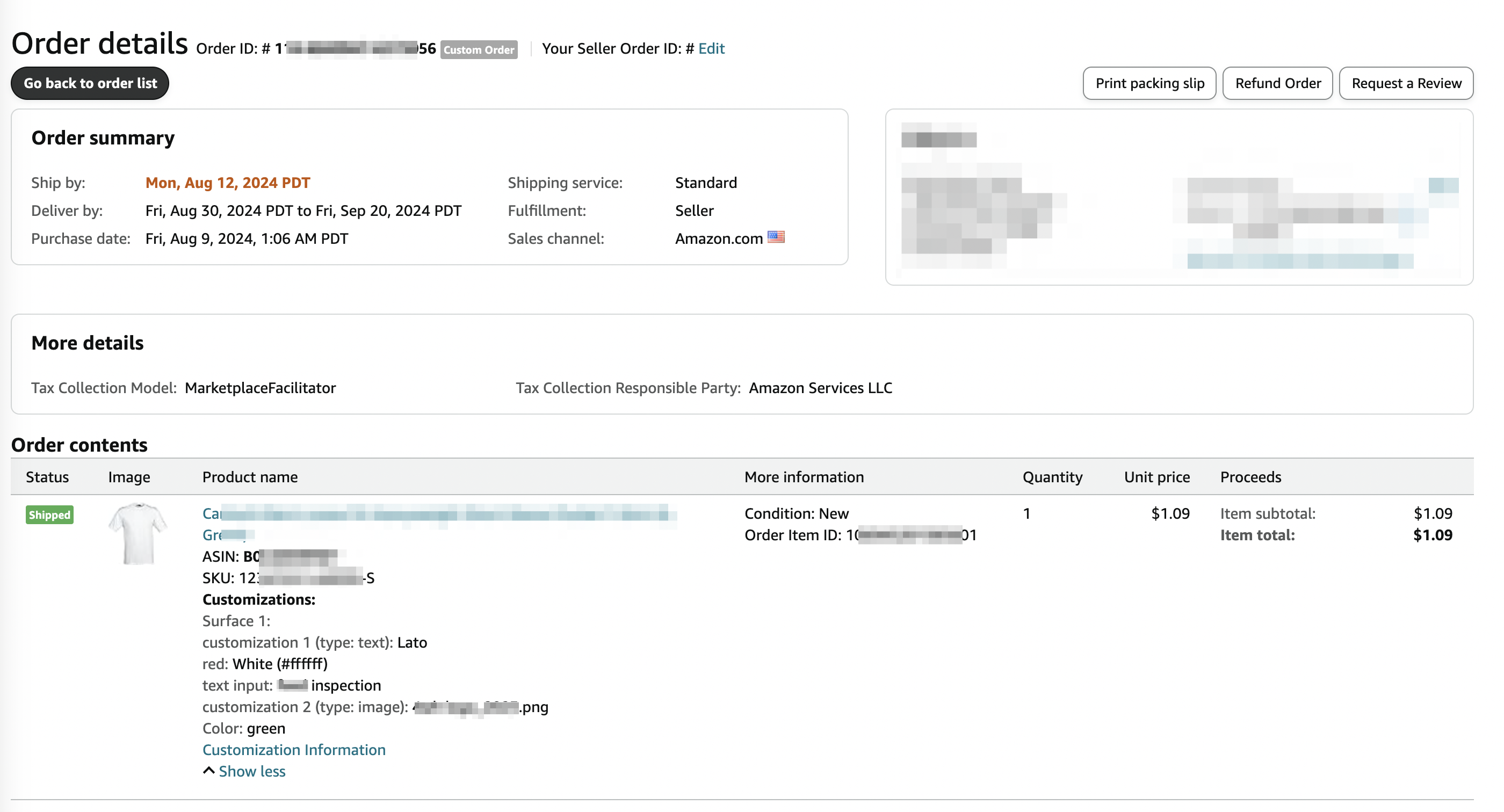
Shopify order 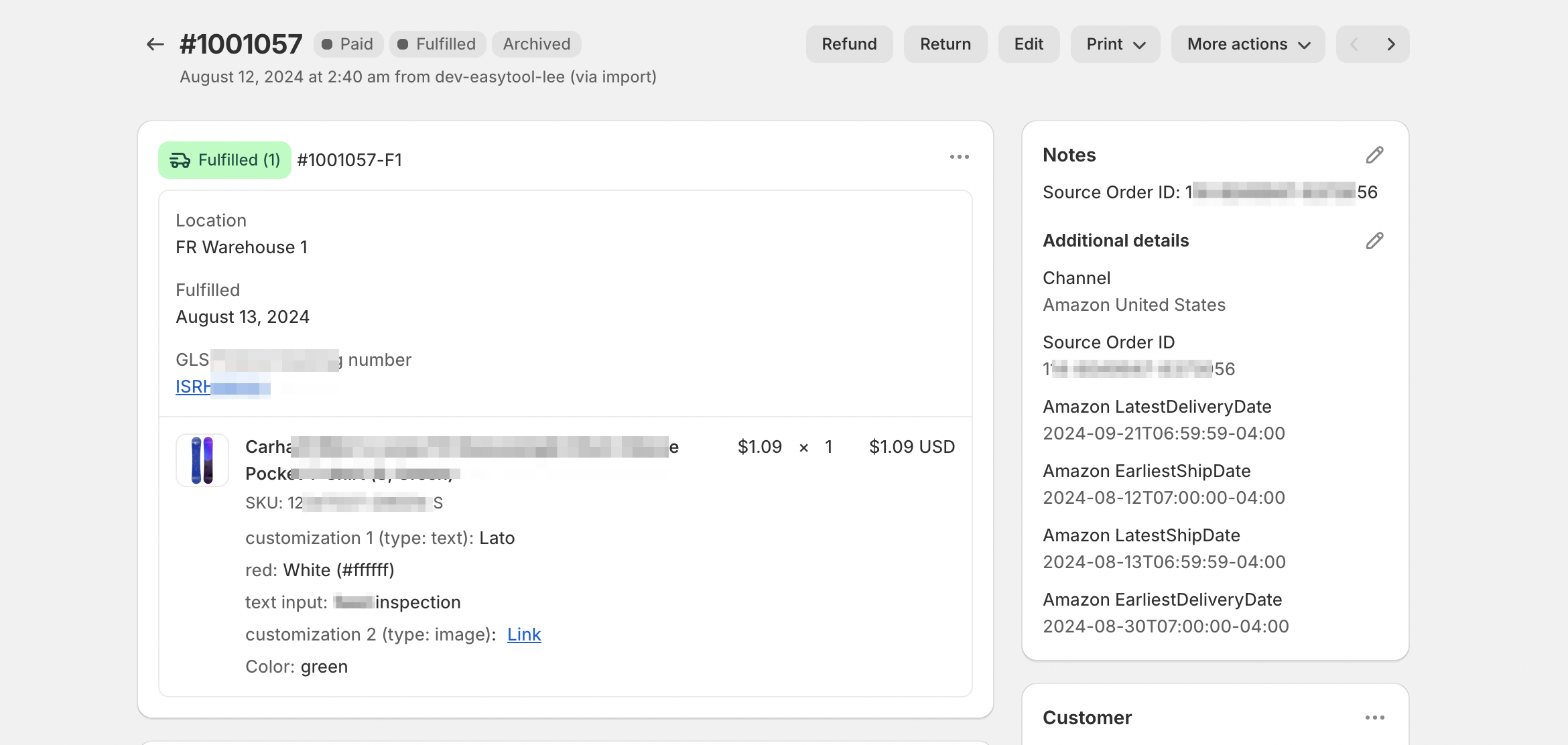
If you are experiencing any other issues or have any other request please reach out to support as mentioned at the bottom of this article!
4. Cancel orders
If a buyer has not received an order (before fulfillment), you can cancel it in the MFN tab through the app.
4.1 Go to the Orders page, then click the MFN button.
4.2 The store administrator can cancel the order in the MFN tab.
4.3 Once canceled, the order status will update on Amazon first, followed by an update on Shopify.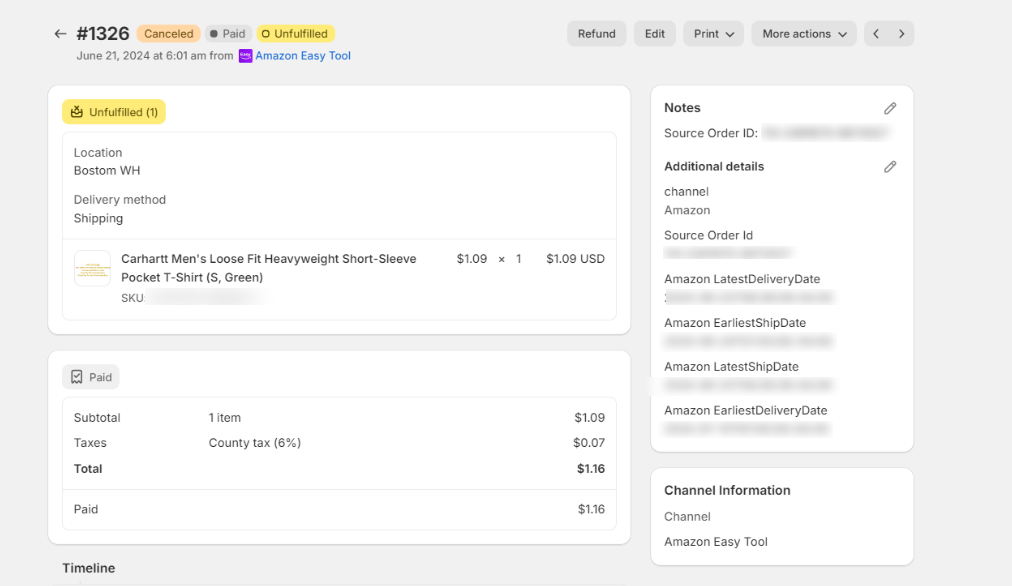
When an order is marked as Canceled, it will be moved to the Closed tab inside the Order menu.
5. Refund orders
Refunds can be processed for delivered or closed orders. Select an order and specify a reason for the refund before proceeding. We recommend processing refunds through the app or Shopify for a smoother experience.
A. Refund via Amazon Easy Sync App
- Go to the Orders page and select the Closed button.
- Choose Refund and follow the necessary steps.
- Select a reason for the refund from the list and confirm to complete the request.
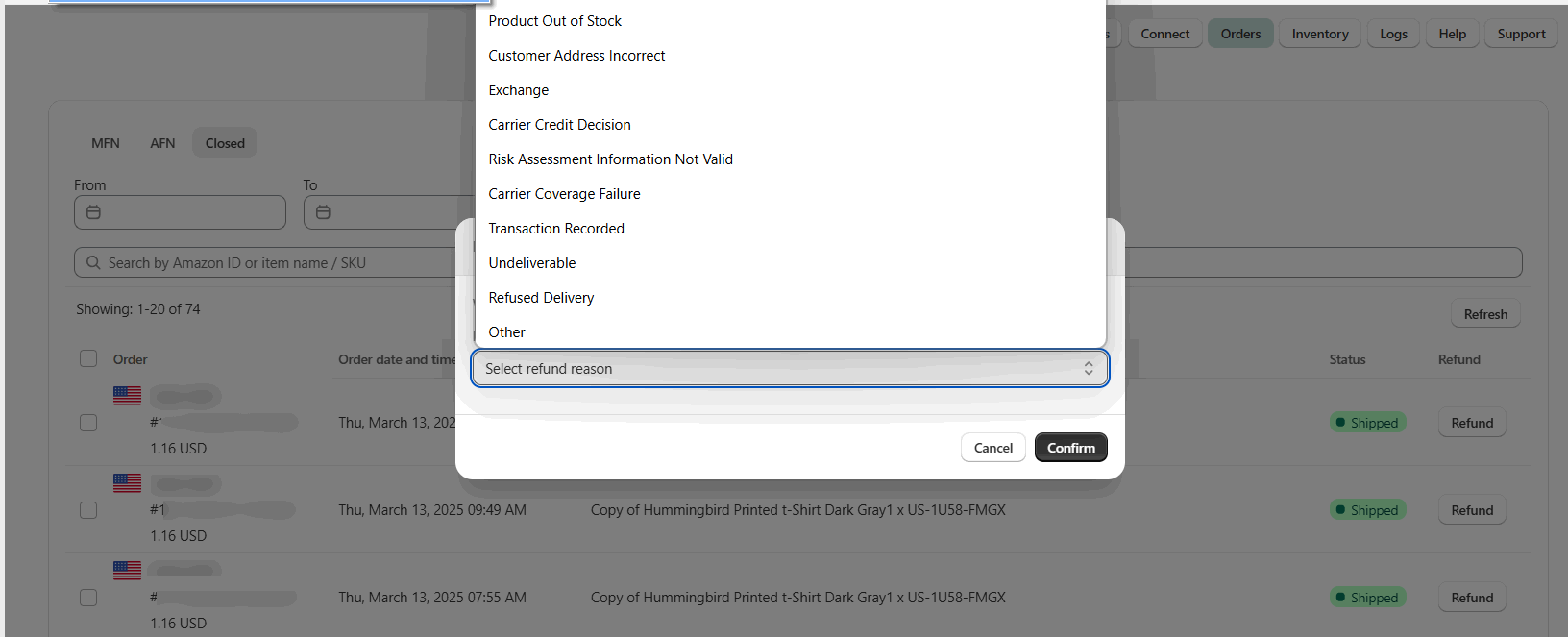
After clicking the refund button, it will be read-only and cannot be edited further.
When you refund an order via the app, its status will update to Refunded and synchronize across both Shopify and Amazon.
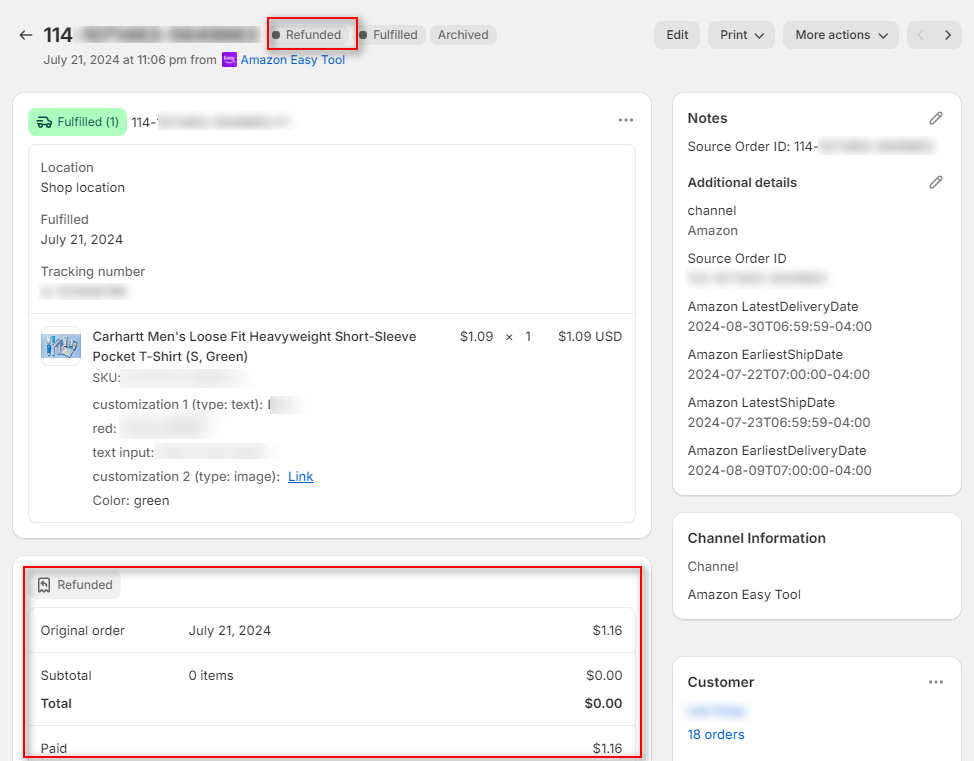
B. Refund via Shopify
You can also refund the order directly through Shopify, which will synchronize the status across all platforms.
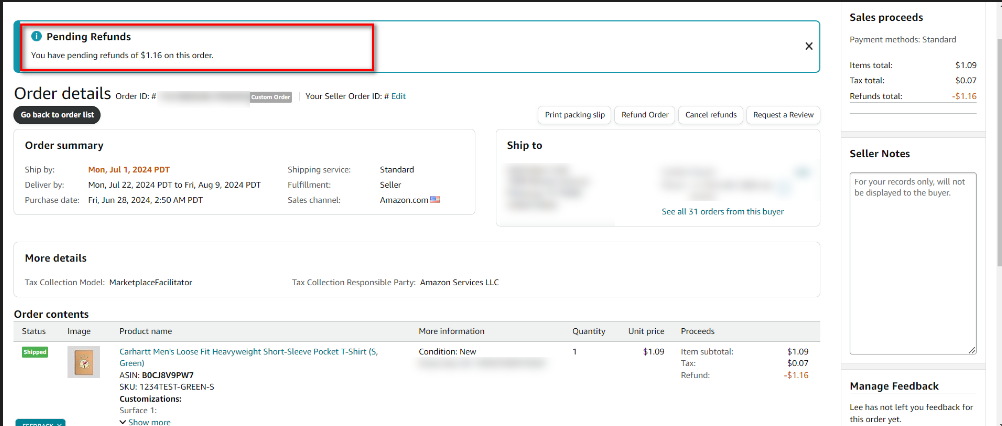
C. Refund via Amazon
Refunds processed directly through Amazon will update the order status to Pending Refunds . For a smoother experience, we encourage using the app or Shopify for refunds.
5. Manual Order Import
As a reminder, orders will be imported through our app automatically as long as products are linked by matching identifiers such as SKUs, barcodes, etc. Please allow some processing time for orders to be automatically imported, as Amazon typically takes 30-35 minutes to approve.
If any orders are not imported because products are not linked by matching identifiers, or if you just installed the app and wish to import old orders, you can use the manual import button.
How to Use the Manual Import Feature
-
Access the Orders Page
Navigate to the Orders page in your dashboard. -
Locate the Import Option
You will find the new manual import feature prominently displayed. -
Initiate the Import
Click the import button to start importing old or missed orders. This process will run in the background. -
Refresh the Order List
Once the import is complete, you can refresh the order list to see the updated results. Use the refresh button located on the left side of the page.6. Customer Tags
Easily categorize and segment your customer base for better targeting.
See screenshot: Customer tags feature with app name and "Amazon" tag.7. Billing Address Forming
Automatically create billing addresses from buyer names and shipping addresses. This feature is available for PRO and ENTERPRISE users.
See screenshot: Billing address form created from buyer names and shipping addresses.
8. Gift Messages
Now you can include gift messages from Amazon to add a personalized touch to your orders!
See screenshot: Gift message feature showing how to add a gift message from Amazon to a Shopify order.
These new features simplify the process of keeping your order records accurate. If you have any questions or need assistance with the import process, please contact our support team.
______________________________________________________________________________________________________
We trust that you have found this article to be informative and valuable. If you have any further inquiries or require assistance, please do not hesitate to reach out to our dedicated support team at support@toolecommerce.com .
We are here to assist you with any questions or concerns you may have.
Comments
0 comments
Please sign in to leave a comment.